> ## Documentation Index
> Fetch the complete documentation index at: https://docs.spline.design/llms.txt
> Use this file to discover all available pages before exploring further.
# Change theme on Spline
Spline supports **Dark**, **Light**, and **System** themes so you can customize the interface to your preference.
***
You can switch themes from two places:
## 1. From the Dashboard
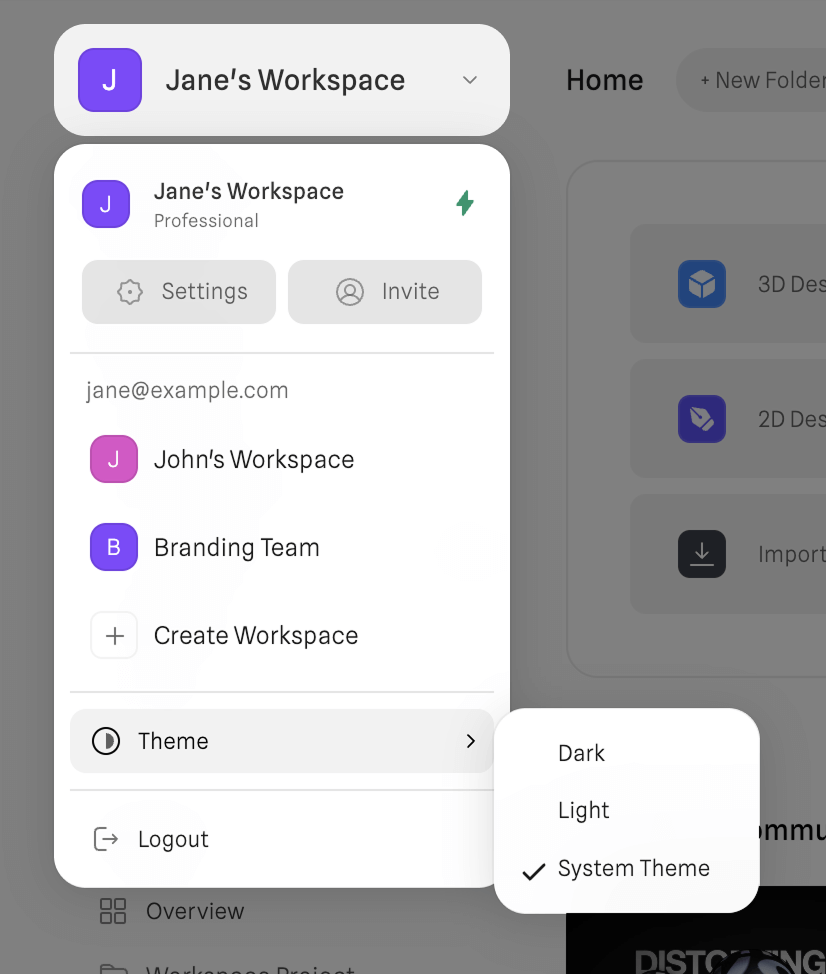
You can change the theme directly from the main Dashboard menu.
**How to access it:**
1. Open the **Workspace Switcher** (top-left corner of the Dashboard).
2. Scroll to the bottom of the menu.
3. Click **Theme**.
4. Select **Dark**, **Light**, or **System Theme**.
 ***
## 2. From the Editor
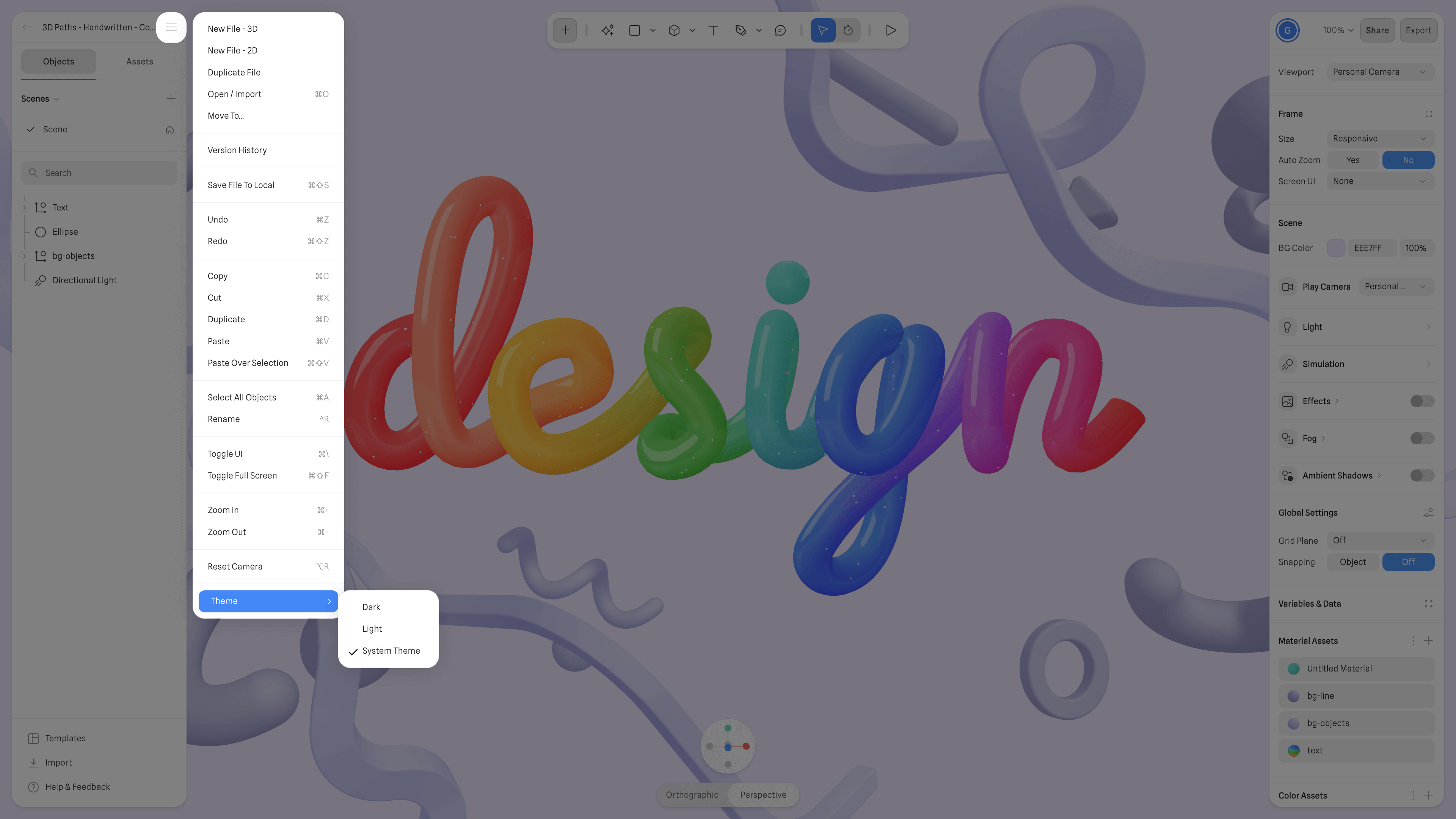
You can also switch themes while working inside any 3D or Hana file.
**How to access it:**
1. Open the **Main Menu** (top-left corner of the Editor).
2. Scroll to the bottom of the dropdown list.
3. Click **Theme**.
4. Choose **Dark**, **Light**, or **System Theme**.
***
## 2. From the Editor
You can also switch themes while working inside any 3D or Hana file.
**How to access it:**
1. Open the **Main Menu** (top-left corner of the Editor).
2. Scroll to the bottom of the dropdown list.
3. Click **Theme**.
4. Choose **Dark**, **Light**, or **System Theme**.
 ***
## System Theme
When using **System Theme**, Spline automatically follows your operating system’s appearance settings — switching between light and dark depending on your OS preferences.
***
## System Theme
When using **System Theme**, Spline automatically follows your operating system’s appearance settings — switching between light and dark depending on your OS preferences.