> ## Documentation Index
> Fetch the complete documentation index at: https://docs.spline.design/llms.txt
> Use this file to discover all available pages before exploring further.
# Understanding Spline's UI
Below you can see an overview of Spline's UI.
## Files view
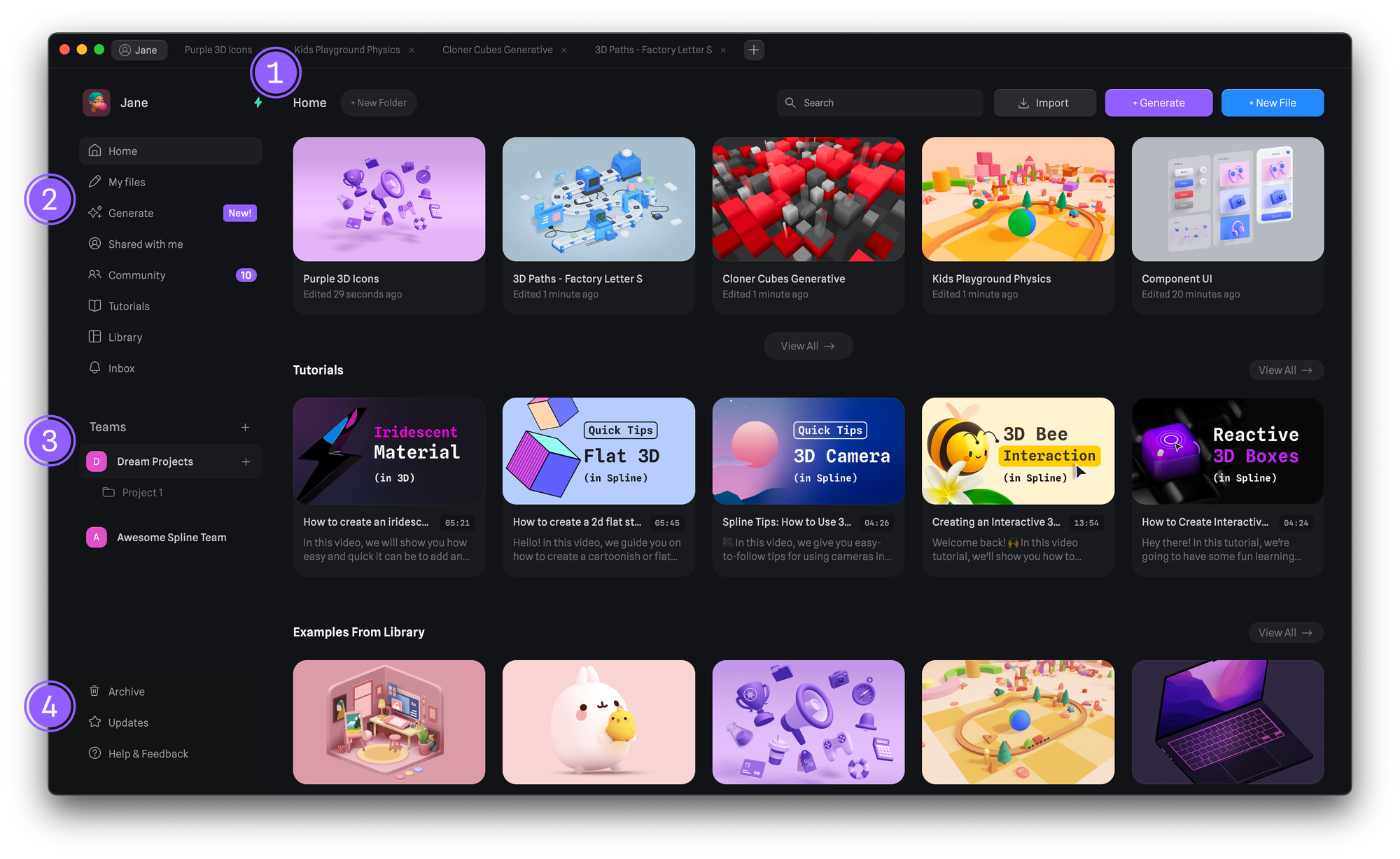 1. The **Home** gives you access to your recent files, latest tutorials and library examples.
2. The **Left navigation bar** gives you access to your files, notifications, tutorials, community and more.
3. The **Team section** shows your team projects and makes it possible to switch between teams.
4. Bottom-left section allows you to check the archive files, updates and get help & feedback.
## Editor
1. The **Home** gives you access to your recent files, latest tutorials and library examples.
2. The **Left navigation bar** gives you access to your files, notifications, tutorials, community and more.
3. The **Team section** shows your team projects and makes it possible to switch between teams.
4. Bottom-left section allows you to check the archive files, updates and get help & feedback.
## Editor
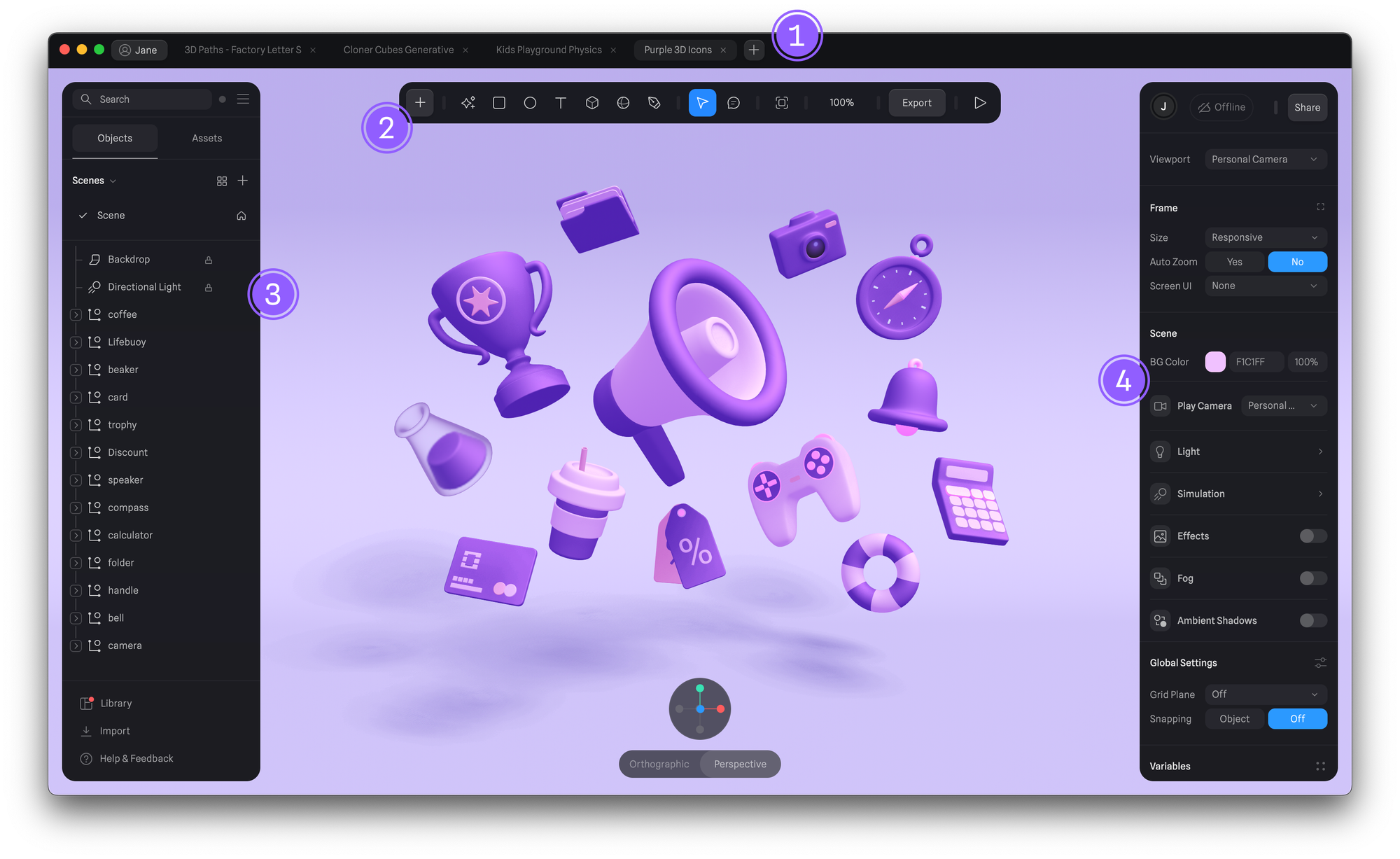 1. The **Tab bar** shows your opened files.
* Press the "+" icon to create new files.
* Press the button with your name to go back to the dashboard.
2. The **Toolbar** provides quick access to the most common objects, transform options, and special modes, like the vector tool or frame mode. We can also see the zoom value, export our scene, or go into presentation mode.
* Press the "+" icon to see a full list of available objects (parametric objects).
* Press **Transform** (the arrow) to move, scale and rotate an object.
* Press the "Play" icon to access **Play Mode**.
3. The **Left Sidebar** shows your scene's layers or objects. Also known as the Outliner. Switching to **“Assets”** will access the **asset browser** and **team library manager**.
4. The **Right Sidebar** shows the **Property Panels**. Each panel lets you change properties from either the whole scene or from selected objects.
1. The **Tab bar** shows your opened files.
* Press the "+" icon to create new files.
* Press the button with your name to go back to the dashboard.
2. The **Toolbar** provides quick access to the most common objects, transform options, and special modes, like the vector tool or frame mode. We can also see the zoom value, export our scene, or go into presentation mode.
* Press the "+" icon to see a full list of available objects (parametric objects).
* Press **Transform** (the arrow) to move, scale and rotate an object.
* Press the "Play" icon to access **Play Mode**.
3. The **Left Sidebar** shows your scene's layers or objects. Also known as the Outliner. Switching to **“Assets”** will access the **asset browser** and **team library manager**.
4. The **Right Sidebar** shows the **Property Panels**. Each panel lets you change properties from either the whole scene or from selected objects.