> ## Documentation Index
> Fetch the complete documentation index at: https://docs.spline.design/llms.txt
> Use this file to discover all available pages before exploring further.
# Effects (Post-Processing)
Post-processing enables global effects on your scene.
To enable post-processing effects, first deselect all objects to get the default sidebar on the right. Then under Scene, you’ll find the Effects panel where you can enable post-processing effects.
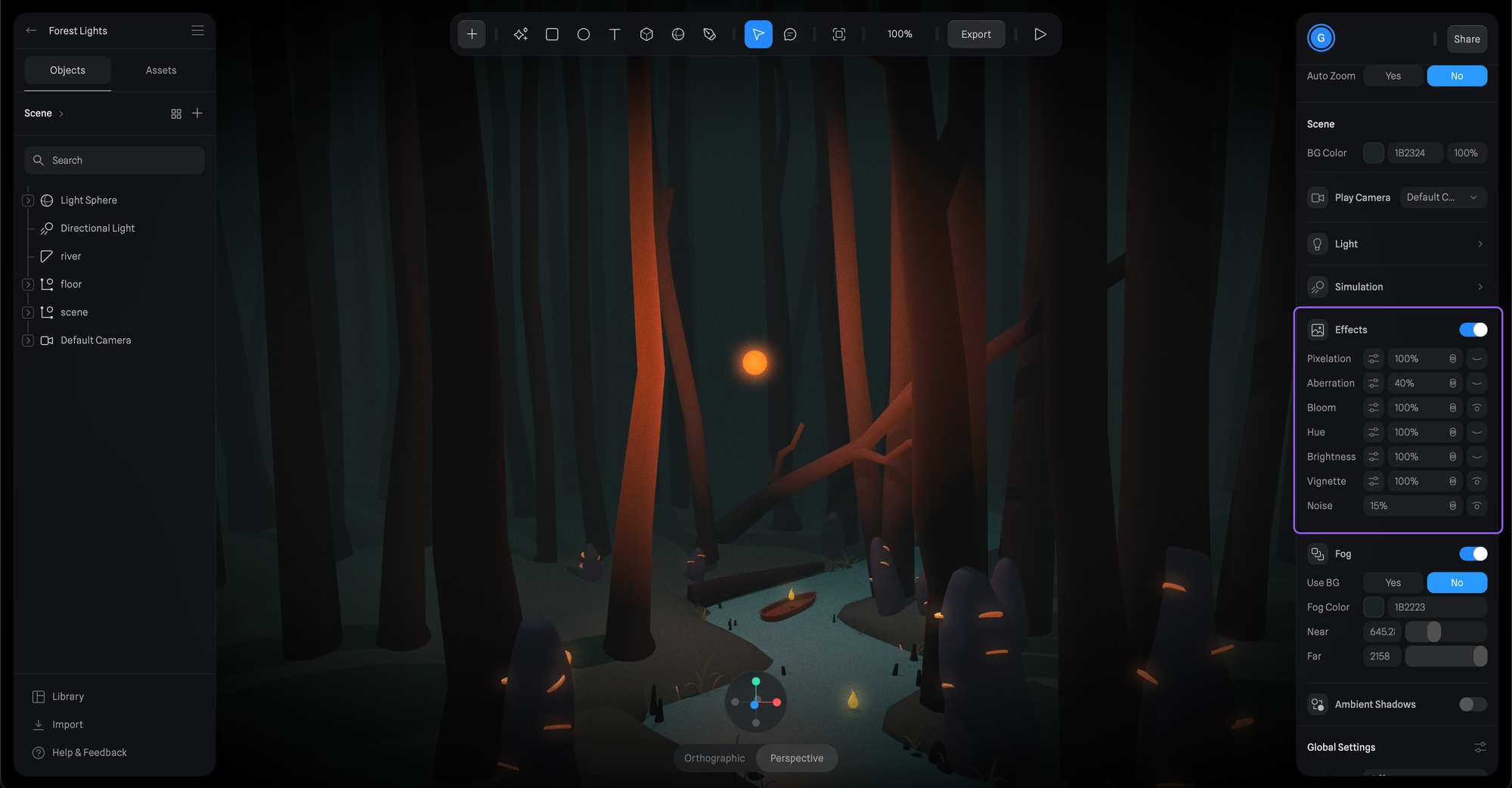 By default, all post-processing effects will be disabled but can be toggled ON/OFF by pressing the eye icon.
To change each effect settings press on the settings icon.
At this moment Spline has the following Post-Processing effects:
* **Depth of Field**
* **Pixelation**
* **Aberration**
* **Bloom**
* **Hue**
* **Brightness**
* **Vignette**
* **Noise**
If you have ideas for new effects, [send us your feedback.](https://airtable.com/shryPwf6CV6NF65bG)
#### Performance
Using many post-processing effects can have an impact on the performance of your exported scene. Make sure to use it only when needed and avoid combining multiple effects enabled at the same time.
By default, all post-processing effects will be disabled but can be toggled ON/OFF by pressing the eye icon.
To change each effect settings press on the settings icon.
At this moment Spline has the following Post-Processing effects:
* **Depth of Field**
* **Pixelation**
* **Aberration**
* **Bloom**
* **Hue**
* **Brightness**
* **Vignette**
* **Noise**
If you have ideas for new effects, [send us your feedback.](https://airtable.com/shryPwf6CV6NF65bG)
#### Performance
Using many post-processing effects can have an impact on the performance of your exported scene. Make sure to use it only when needed and avoid combining multiple effects enabled at the same time.