> ## Documentation Index
> Fetch the complete documentation index at: https://docs.spline.design/llms.txt
> Use this file to discover all available pages before exploring further.
# Working with Cameras
#### Orbit the camera
| | macOS | Windows |
| -------- | ----------------------- | -------------------- |
| Mouse | `Option + Click & Drag` | `Alt + Click & Drag` |
| Trackpad | `Option + Tap & Drag` | `Alt + Tap & Drag` |
#### Zoom the camera
| | macOS | Windows |
| -------- | --------------------------------- | --------------------------- |
| Mouse | `Scroll` or `Cmd + Scroll` | `Scroll` or `Ctrl + Scroll` |
| Trackpad | `Pinch` or `Cmd + 2 Finger Swipe` | `Pinch` or `Ctrl + Swipe` |
| | | |
#### Pan the camera
| | macOS | Windows |
| -------- | ---------------------- | ---------------------- |
| Mouse | `Space + Click & Drag` | `Space + Click & Drag` |
| Trackpad | `2 Finger drag` | `2 Finger drag` |
| | | |
You can find Spline's camera controls on the bottom center of the Viewport.
To navigate between views, press the axis points.
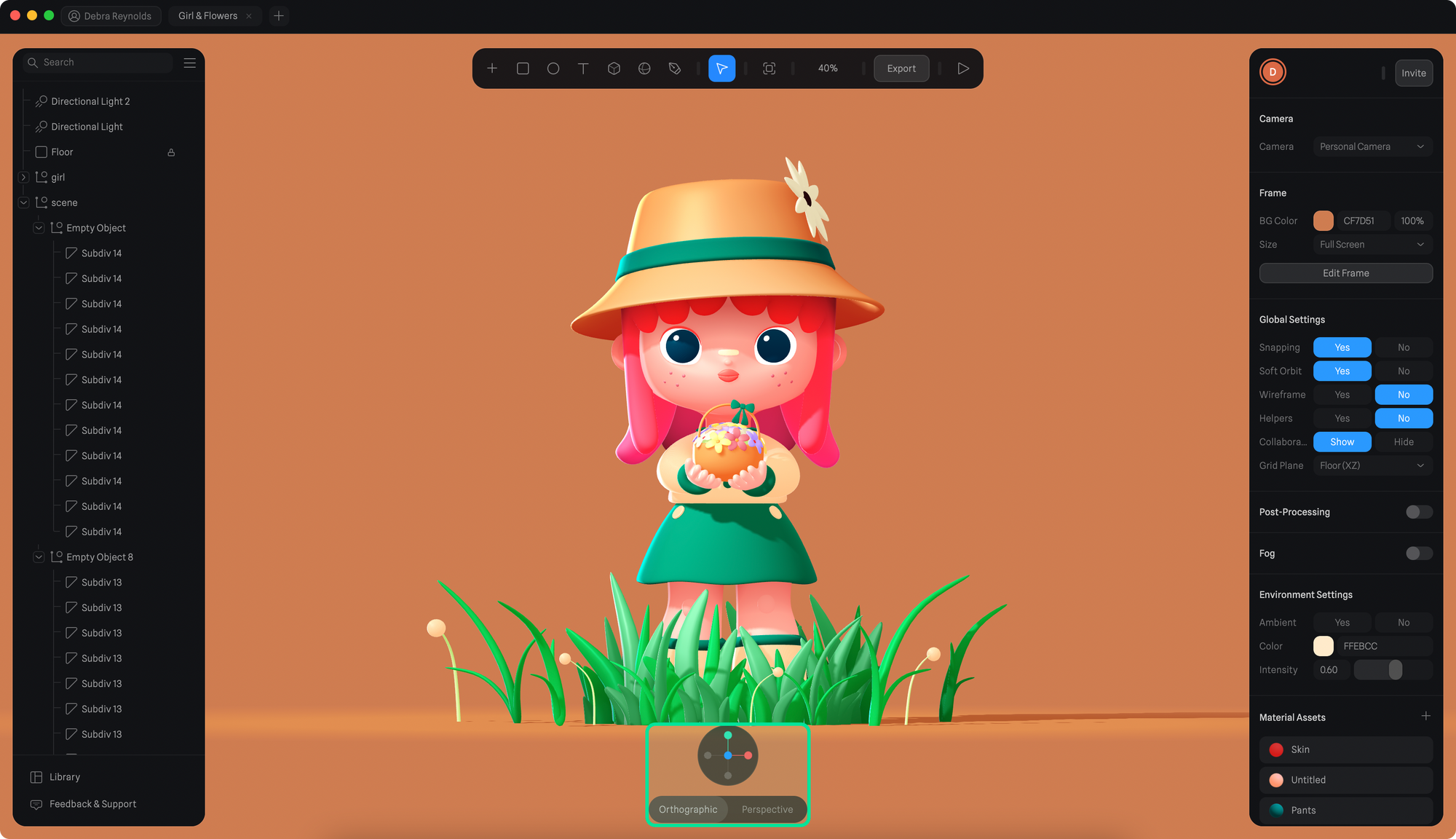 By hovering the view helper you'll be presented with two extra options.
Quickly reset the view of your scene or go into an Isometric view.
By hovering the view helper you'll be presented with two extra options.
Quickly reset the view of your scene or go into an Isometric view.
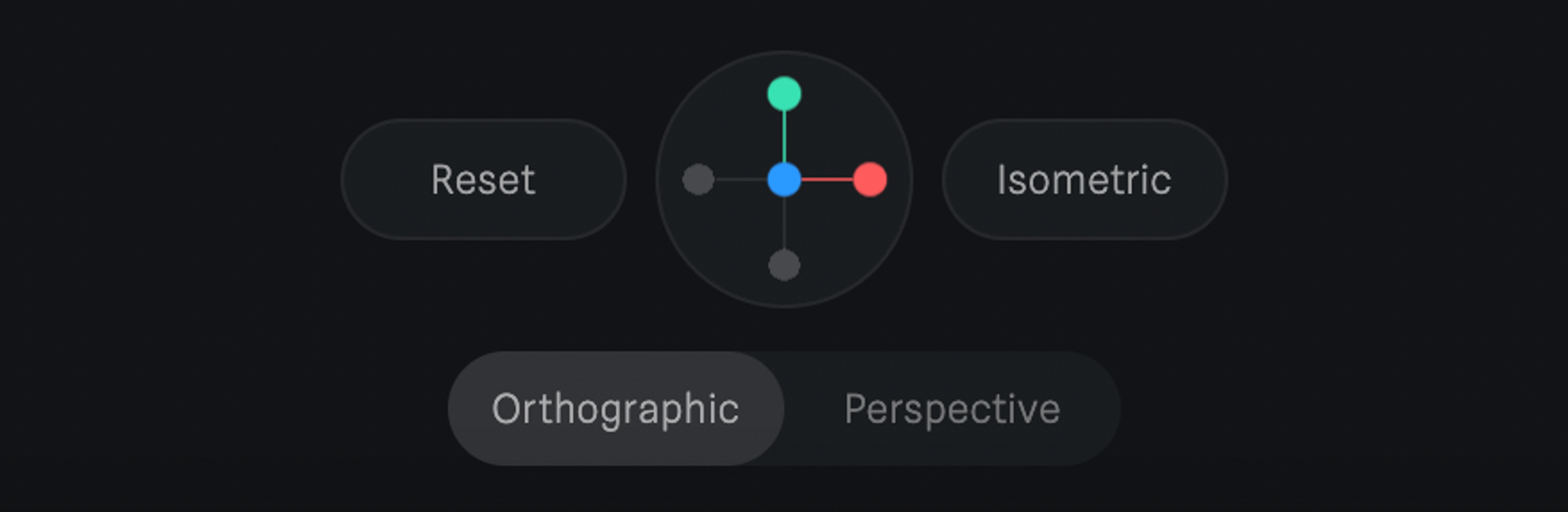 Below the view helper, there are two different camera views to choose from.
Orthographic and Perspective.
* **Orthographic**: All angles are parallel.
* **Perspective**: All angles change based on the distance from the camera to the object.
Here's a video using the view helper to quickly change views and changing between Orthographic and Perspective views. (Shortcut `M`).
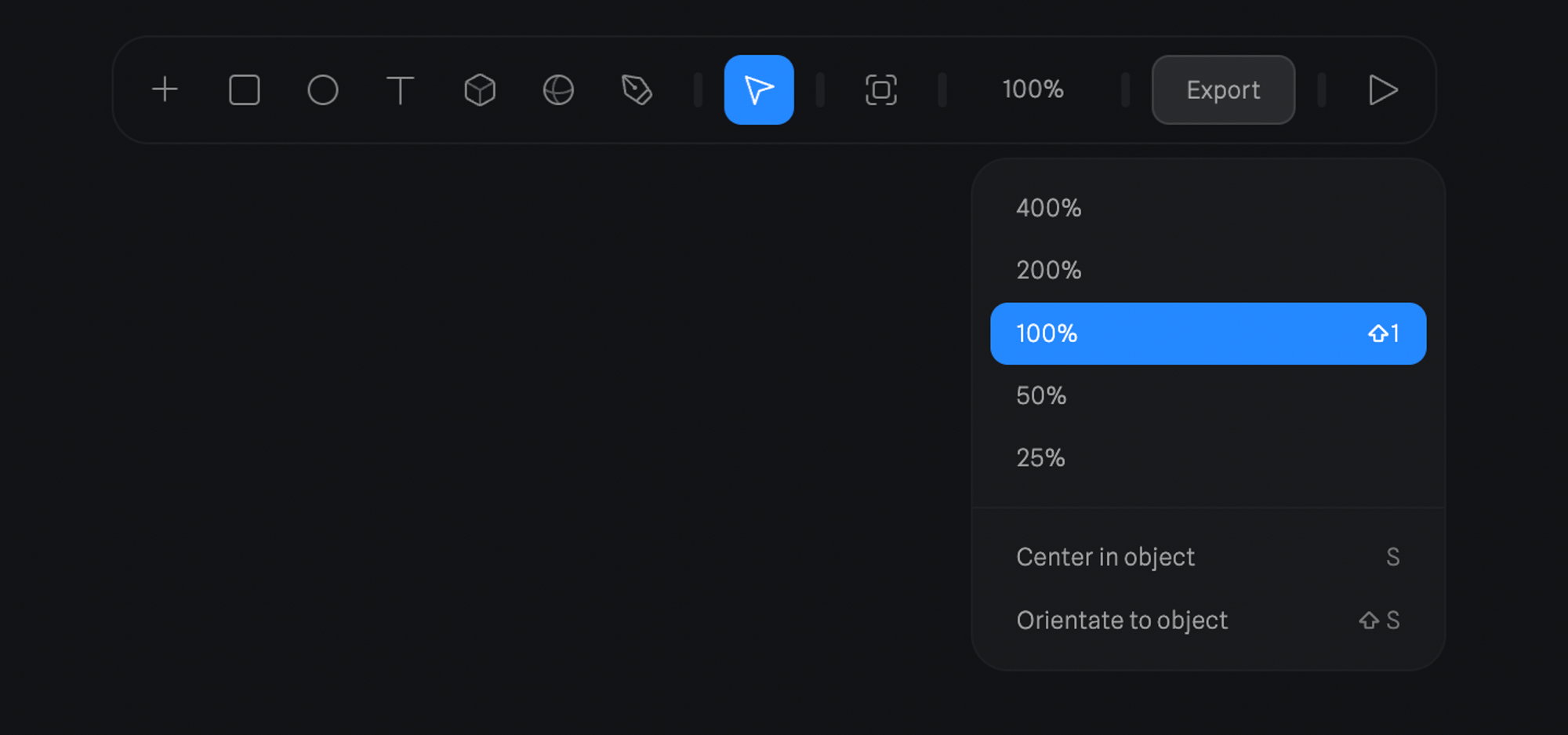
The zoom value can be found on the toolbar. By pressing it you'll find the zoom options.
Below the view helper, there are two different camera views to choose from.
Orthographic and Perspective.
* **Orthographic**: All angles are parallel.
* **Perspective**: All angles change based on the distance from the camera to the object.
Here's a video using the view helper to quickly change views and changing between Orthographic and Perspective views. (Shortcut `M`).
The zoom value can be found on the toolbar. By pressing it you'll find the zoom options.