> ## Documentation Index
> Fetch the complete documentation index at: https://docs.spline.design/llms.txt
> Use this file to discover all available pages before exploring further.
# Shape Blend
**Shape Blend** is a method of creating and modeling 3D shapes using **Signed Distance Fields (SDF)** combined with Spline's polygonal-based system.
Unlike traditional methods such as Polygonal Modeling, SDFs describe shapes mathematically using distance functions. This allows for smooth blending and operations like union, subtraction, and intersections of shapes.
## How to create a new Shape Blend group
1. Click on the "+" icon on the toolbar;
2. Select "Shape Blend" from the dropdown menu;
3. A Shape Blend group will be created with an initial Sphere primitive.
## Key Operations in Shape Blending
### Primitives
Create with primitive shapes: **Cube**, **Sphere**, **Torus,** and **Cylinder**. These are accessible from the toolbar when selecting a Shape Blend group.
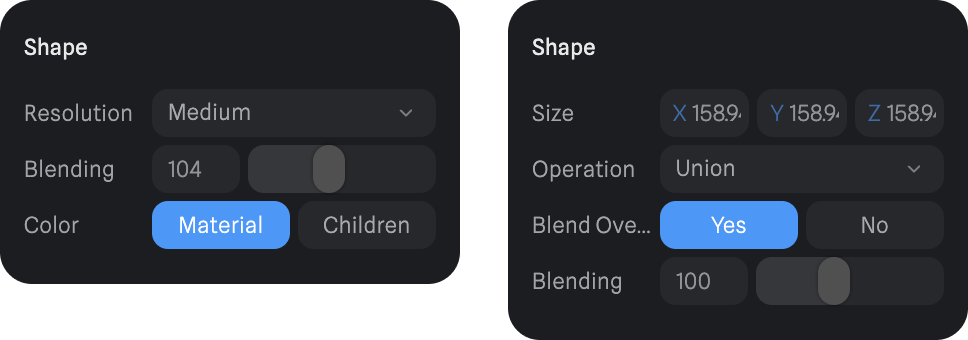
 ### Boolean Operations
When selecting a shape blend primitive, you can define how it behaves with other shapes:
* **Union**: Combine two shapes.
* **Intersection**: Keep only the overlapping parts of two shapes.
* **Subtraction**: Remove one shape from another.
### Blending
Seamlessly connect shapes together to form smooth, natural transitions and flowing designs. Each shape blend primitive allows you to override the blending value for greater precision and control.
### Resolution
Adjust the resolution of the blended shapes from **Low** to **Very High**. Lower resolutions are faster, while higher resolutions provide greater detail at the cost of processing power.
### Color
* **Material**: Control the material for the entire blended shape uniformly.
* **Children**: Control the material of each shape, blend primitive individually, and materials will blend seamlessly together. Only the color layer of the children will be considered.
### Boolean Operations
When selecting a shape blend primitive, you can define how it behaves with other shapes:
* **Union**: Combine two shapes.
* **Intersection**: Keep only the overlapping parts of two shapes.
* **Subtraction**: Remove one shape from another.
### Blending
Seamlessly connect shapes together to form smooth, natural transitions and flowing designs. Each shape blend primitive allows you to override the blending value for greater precision and control.
### Resolution
Adjust the resolution of the blended shapes from **Low** to **Very High**. Lower resolutions are faster, while higher resolutions provide greater detail at the cost of processing power.
### Color
* **Material**: Control the material for the entire blended shape uniformly.
* **Children**: Control the material of each shape, blend primitive individually, and materials will blend seamlessly together. Only the color layer of the children will be considered.
 ## Ordering Blend Shapes in the Outliner
The logic of the shape's outliner order relates to how shapes are processed and blended within a Signed Distance Field (SDF) system. The order in the outliner determines how operations like blending, union, subtraction, or intersections are applied.
### Bottom-to-Top Operations
SDF shapes in the outliner are processed sequentially, starting from the bottom. A shape higher in the list will affect the shapes below it. For example, subtracting a shape will remove parts of the shapes below it.
***
## Constraints
* SDF shapes only operate within the boundaries defined by the green helper of shape blend groups. Be mindful of the scale of your shapes so it fits the designated area.
* Be mindful of performance: the system can become computationally expensive when working with a large number of shapes, especially at the highest resolution settings.
* A creation limit may be reached if you use too many shape blend groups or an excessive number of individual shapes within those groups.
* When using the “Material: Children” option, ensure that your shapes include a color layer at the bottom of the materials layer list. Note that only the color layer will work on individual shapes when this option is enabled.
## Ordering Blend Shapes in the Outliner
The logic of the shape's outliner order relates to how shapes are processed and blended within a Signed Distance Field (SDF) system. The order in the outliner determines how operations like blending, union, subtraction, or intersections are applied.
### Bottom-to-Top Operations
SDF shapes in the outliner are processed sequentially, starting from the bottom. A shape higher in the list will affect the shapes below it. For example, subtracting a shape will remove parts of the shapes below it.
***
## Constraints
* SDF shapes only operate within the boundaries defined by the green helper of shape blend groups. Be mindful of the scale of your shapes so it fits the designated area.
* Be mindful of performance: the system can become computationally expensive when working with a large number of shapes, especially at the highest resolution settings.
* A creation limit may be reached if you use too many shape blend groups or an excessive number of individual shapes within those groups.
* When using the “Material: Children” option, ensure that your shapes include a color layer at the bottom of the materials layer list. Note that only the color layer will work on individual shapes when this option is enabled.