> ## Documentation Index
> Fetch the complete documentation index at: https://docs.spline.design/llms.txt
> Use this file to discover all available pages before exploring further.
# How to Import Content
Import files by some of the following actions:
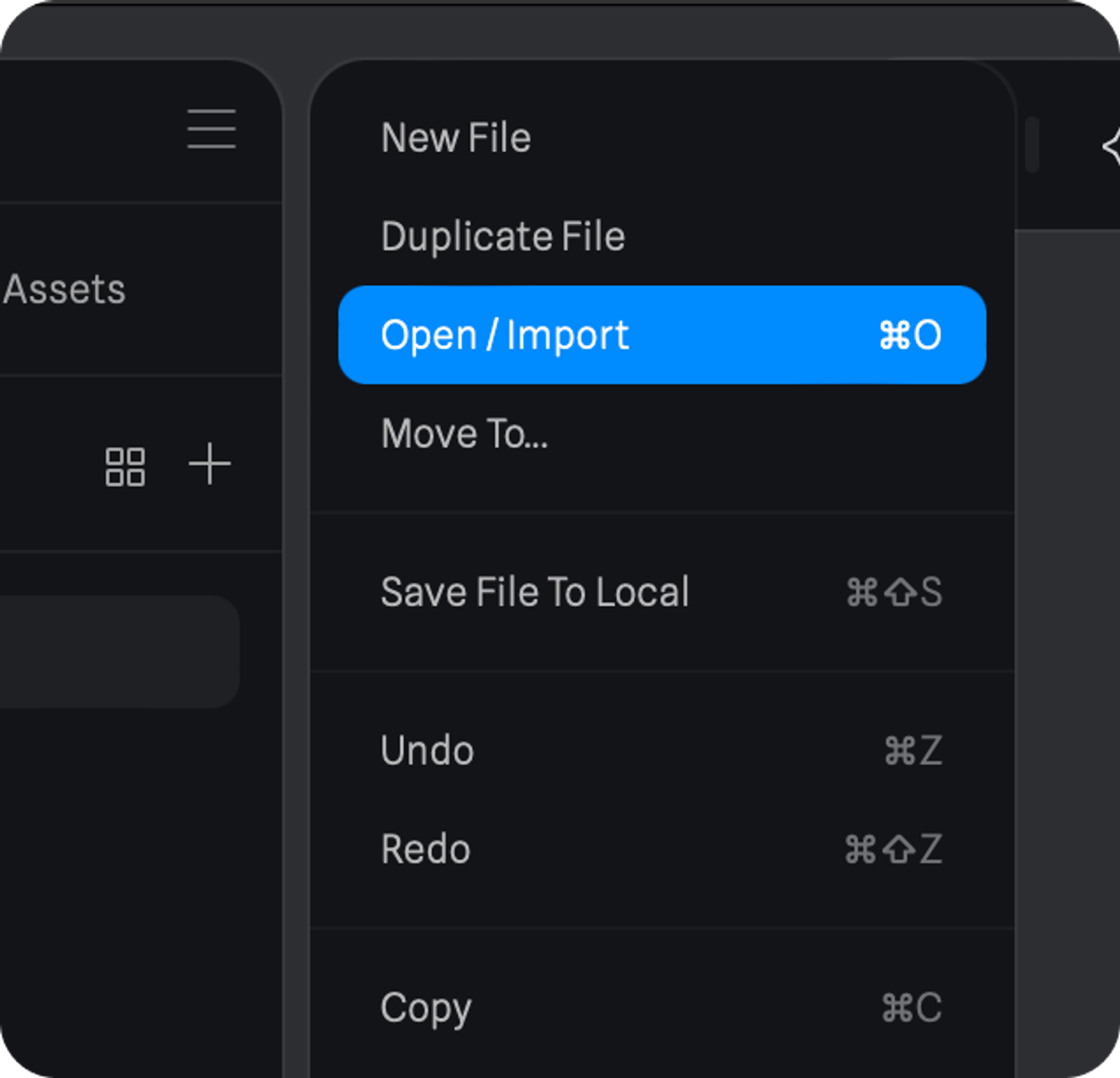
* Access import option from the the UI (main menu, sidebar bottom area or home top right corner)
1. Open the **Main Menu** on the left sidebar next to **Search.**
2. Select **Open / Import** and choose what file to import.
* Pressing the **⌘+O** / **Ctrl+O** shortcut.
* Alternatively, you can drag and drop compatible file types to the viewport.
 Refer below for all the type of files you can import on Spline:
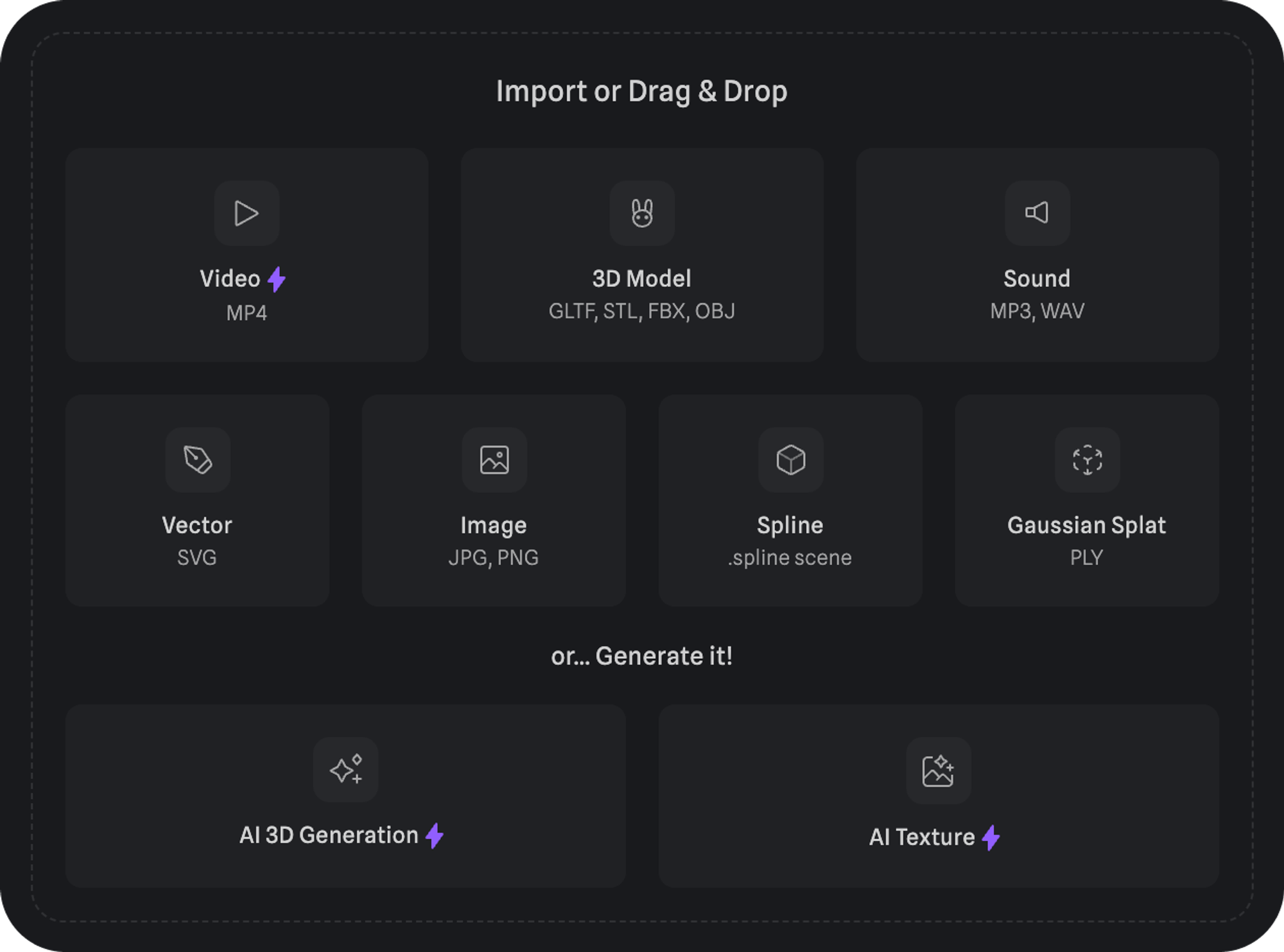 #### 🥕 3D Content
* OBJ
* FBX (supports animation and rigs)
* [Import Animated Objects](/importing-content/import-animated-objects)
* STL
* GLTF (as .gltf)
* GLB (as .glb)
* Spline Files (.spline)
#### 🖼 Images
* PNG
* JPG
#### 🖋️ Vector
* SVG (partial support)\
*Ensure your design has no duplicate points or open paths before saving as SVG 1.1 from Illustrator or flatten it in Figma for better import into Spline.*
#### 🎥 Video
* MP4
#### 🔊 Sound
* MP3
* WAV
#### 🌳 Gaussian Splats
* [3D Gaussian Splatting](/designing-in-3-d/3d-gaussian-splatting)
*Importing an .fbx file by dragging and dropping it into the Viewport.*
#### 🥕 3D Content
* OBJ
* FBX (supports animation and rigs)
* [Import Animated Objects](/importing-content/import-animated-objects)
* STL
* GLTF (as .gltf)
* GLB (as .glb)
* Spline Files (.spline)
#### 🖼 Images
* PNG
* JPG
#### 🖋️ Vector
* SVG (partial support)\
*Ensure your design has no duplicate points or open paths before saving as SVG 1.1 from Illustrator or flatten it in Figma for better import into Spline.*
#### 🎥 Video
* MP4
#### 🔊 Sound
* MP3
* WAV
#### 🌳 Gaussian Splats
* [3D Gaussian Splatting](/designing-in-3-d/3d-gaussian-splatting)
*Importing an .fbx file by dragging and dropping it into the Viewport.*