> ## Documentation Index
> Fetch the complete documentation index at: https://docs.spline.design/llms.txt
> Use this file to discover all available pages before exploring further.
# Open Link Action
An open link action lets you create links on your objects. It’s a great way to create experiences that need to be linked to other web pages.
## Creating a new Open Link Action
1. Select the object that you want to add a link to.
2. On the Events panel, add one of the following events: Mouse Down / Up / Press or Key Down / Up / Press.
3. Open the Event and add an Open URL action.
## Customizing an Open Link Action
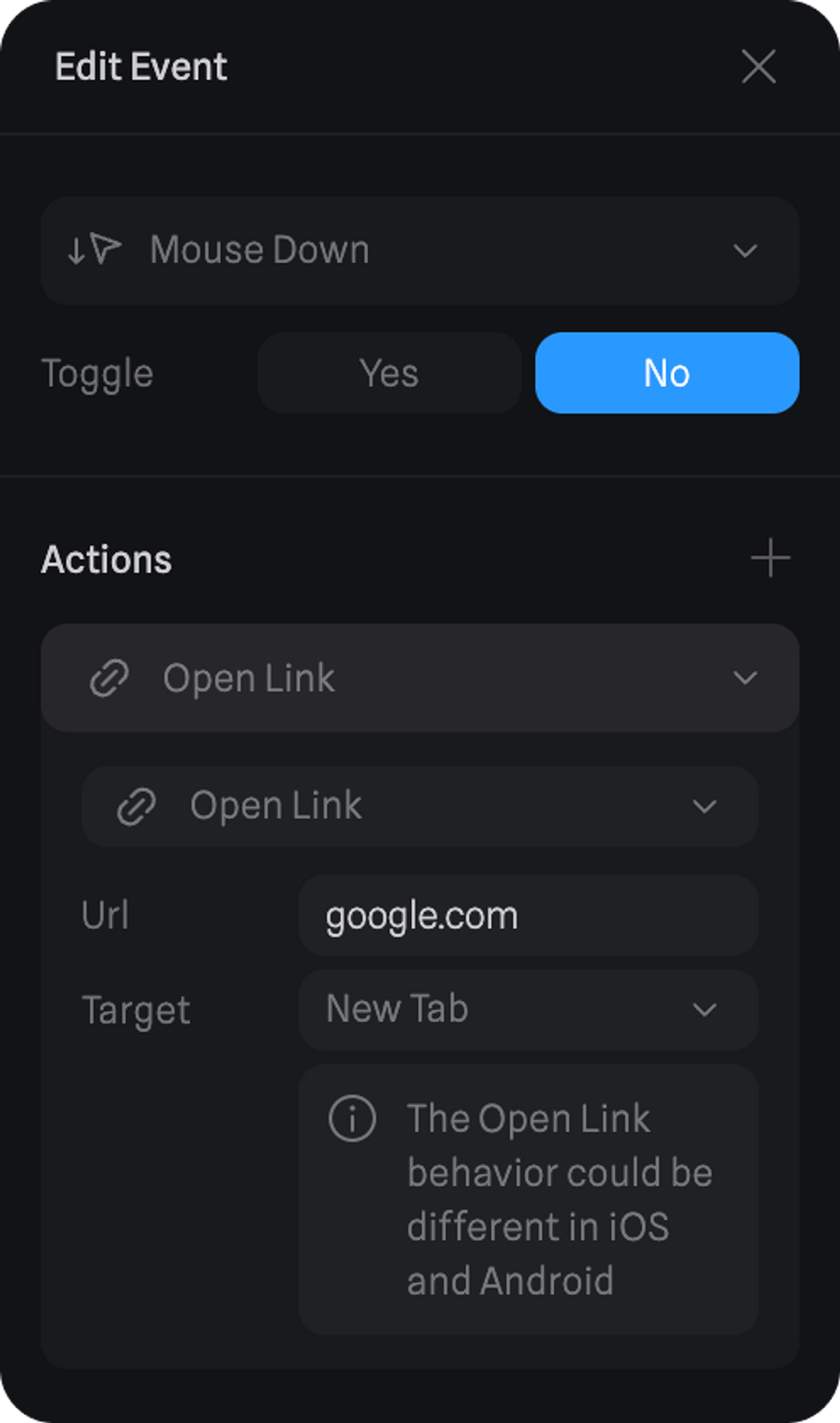
After your event is created, open the ‘Edit Event’ panel to customize your Open Link action.
* **URL** - Input the URL where you want to link to.
* **Target** - Decide how the link is going to be opened (Current Tab, New Tab, or New Window)
 > *Give it a try – Click the button! ☝️*