> ## Documentation Index
> Fetch the complete documentation index at: https://docs.spline.design/llms.txt
> Use this file to discover all available pages before exploring further.
# Scene Transition Action
A scene transition action allows you to create a transition between multiple scenes on your file.
Learn more about [Multi-Scenes](/designing-in-3-d/multi-scenes).
***
## Creating a new Scene Transition Action
To add a new scene transition:
1. Make sure you have multiple scenes in your file.
2. Select the object to which you want to apply the scene transition to.
3. Add an event that will be used to trigger the scene transition action.
4. Open the Event and add a scene transition action.
## Customizing a Scene Transition Action
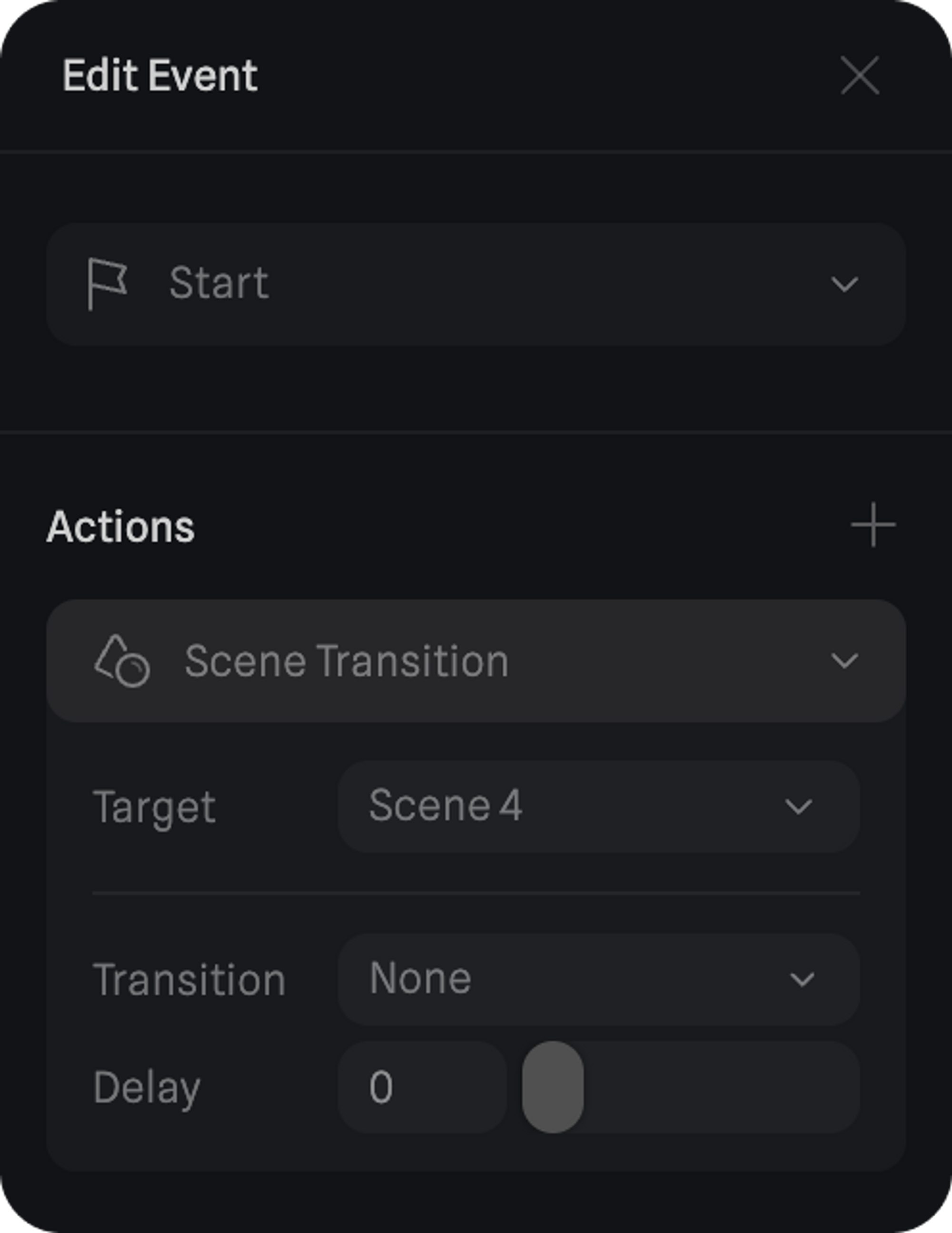
Open the ‘Edit Event’ panel to customize your scene transition.
Here are the different customizable sections of a scene transition action:
**Target**
The scene that the event will transition to.
**Transition**
It can be instant or have a fade-in effect.
* None → will result in an instant transition
* Fade-in → will make a fade-in effect with a set duration defined in seconds
**Delay** → A delay can be set before the transition happens.
 > *🙌 **Use*** `WASD` ***to walk, and*** `SPACE` ***to jump***\*. Try out Scene Transition in action with this example by walking into one of the portal platforms.\*