> ## Documentation Index
> Fetch the complete documentation index at: https://docs.spline.design/llms.txt
> Use this file to discover all available pages before exploring further.
# Switch Camera Action
The Switch Camera action allows you to switch between different cameras via the event system.
## Creating a new Switch Camera Action
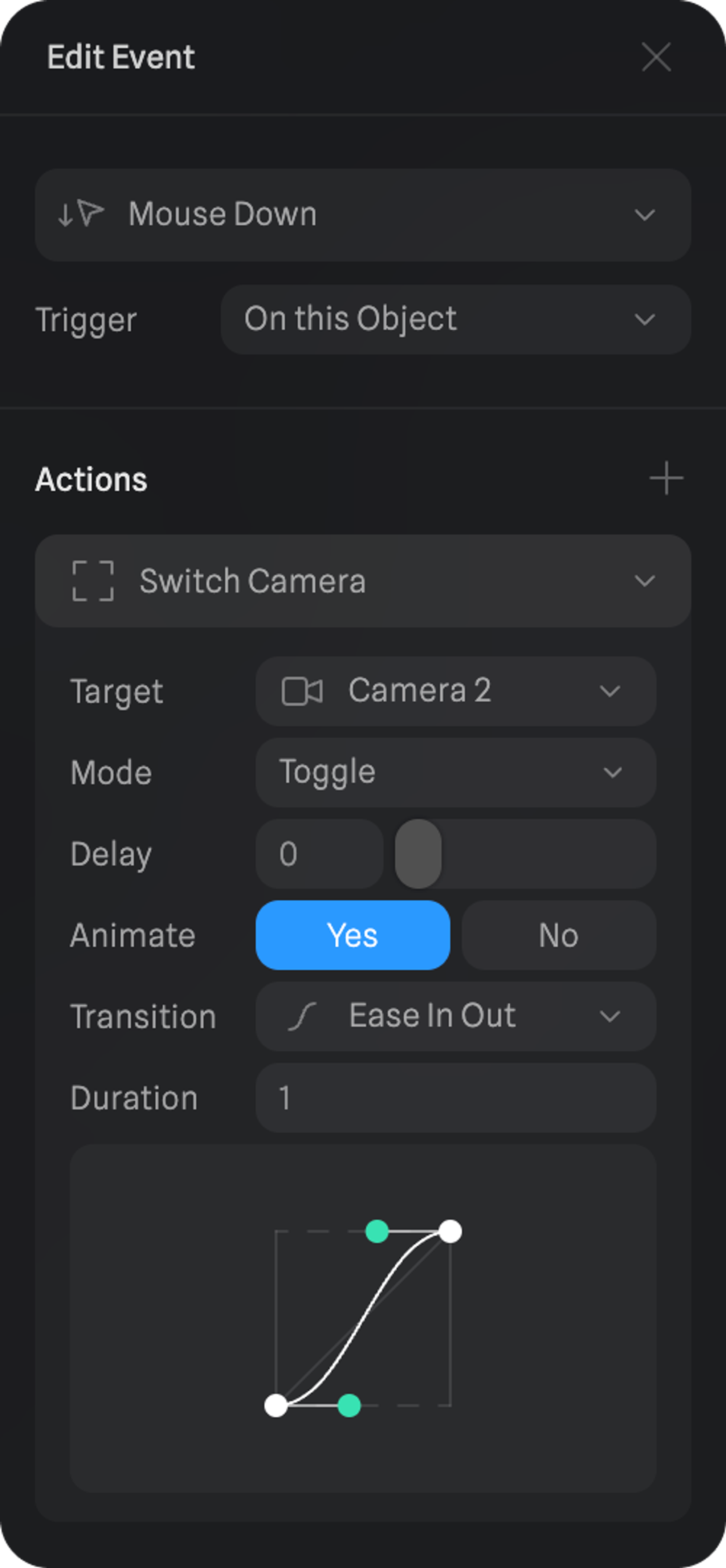
1\. Select an object and create an event on the events panel. 2. Open the event and find the “Actions” panel. 3. Add “Switch Camera” to your actions. 4. Select which camera to switch to and customize the settings to your liking.
## Customizing a Switch Camera Action
* **Target →** Select the camera you want to switch to.
* **Mode →** If it switches once or if you can toggle between the target camera and the original camera.
* **Delay** → Add a delay before the camera switch.
* **Animate** → Decide if the transition between cameras is animated or instant. If Animate = Yes, you can then customize the transition curve and duration.
 > *Press the monitor to switch between Camera 1 and Camera 2. Notice how it animates smoothly and how you can orbit even on Camera 2.*