> ## Documentation Index
> Fetch the complete documentation index at: https://docs.spline.design/llms.txt
> Use this file to discover all available pages before exploring further.
# Variable Control Action
Variable Control Action allows you to control the interaction of dynamic variables in the scene.
Learn more about [Variables](/interaction-states-events-and-actions/variables) to fully understand how to use Variable Control Action.
## How to use Variable Control Action
When an Event is performed, a dynamic variable can be controlled with the following interaction types: `Play`, `Pause`, `Stop` , `Restart`, or `Toggle - Ping Pong` along with a delay value.
Here is a simple how-to example of interacting with the dynamic variable via a mouse click.
*Video demonstrating how to use Variable Control Action with Dynamic Counter Variable.*
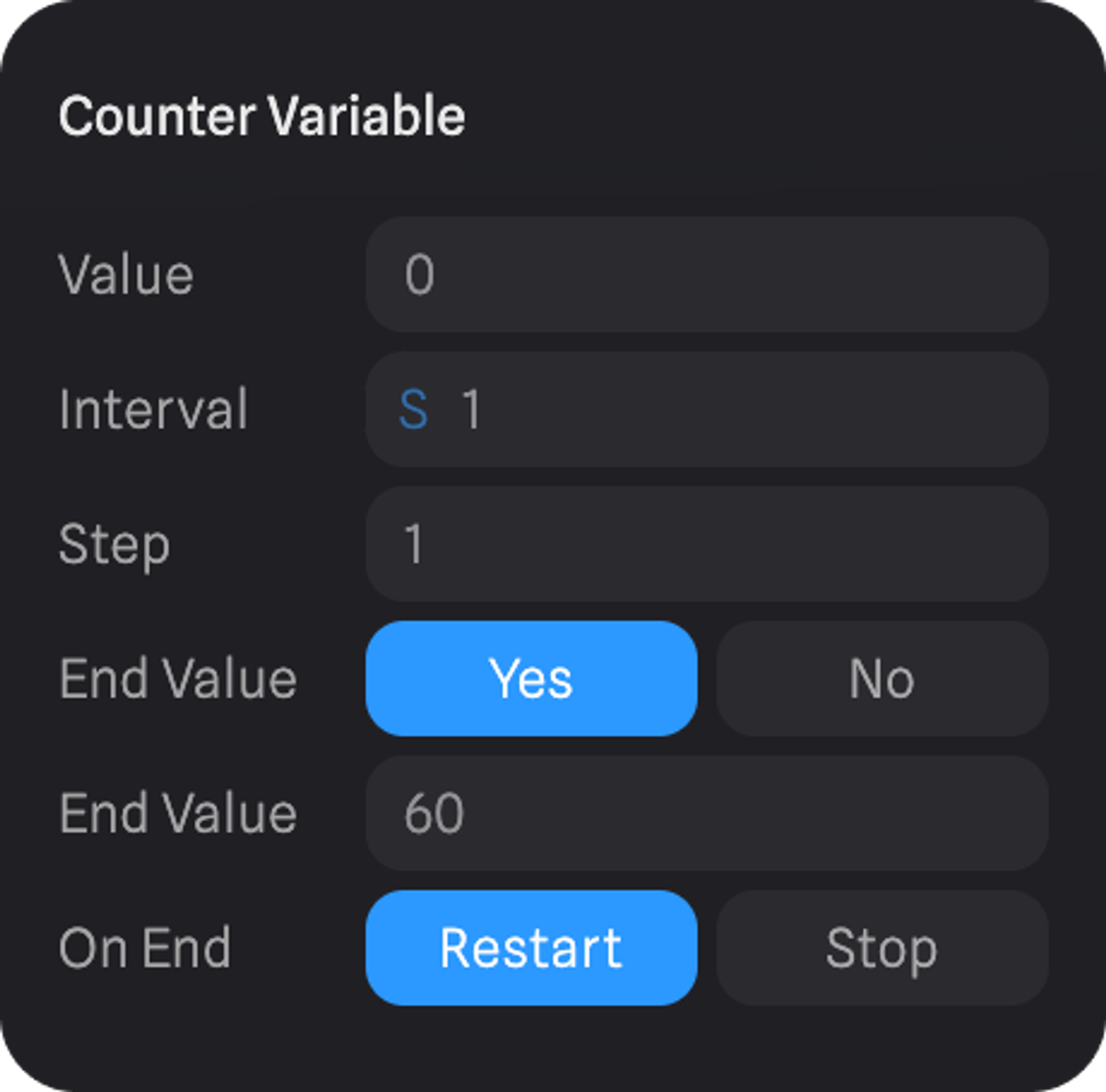
1. In a new scene, create a cube and a dynamic variable of type `Counter` from the Variable panel.
2. Set the Interval value to “0.001” to make the counter grow faster.
3. Select the cube and assign the counter variable to the X position of the cube.
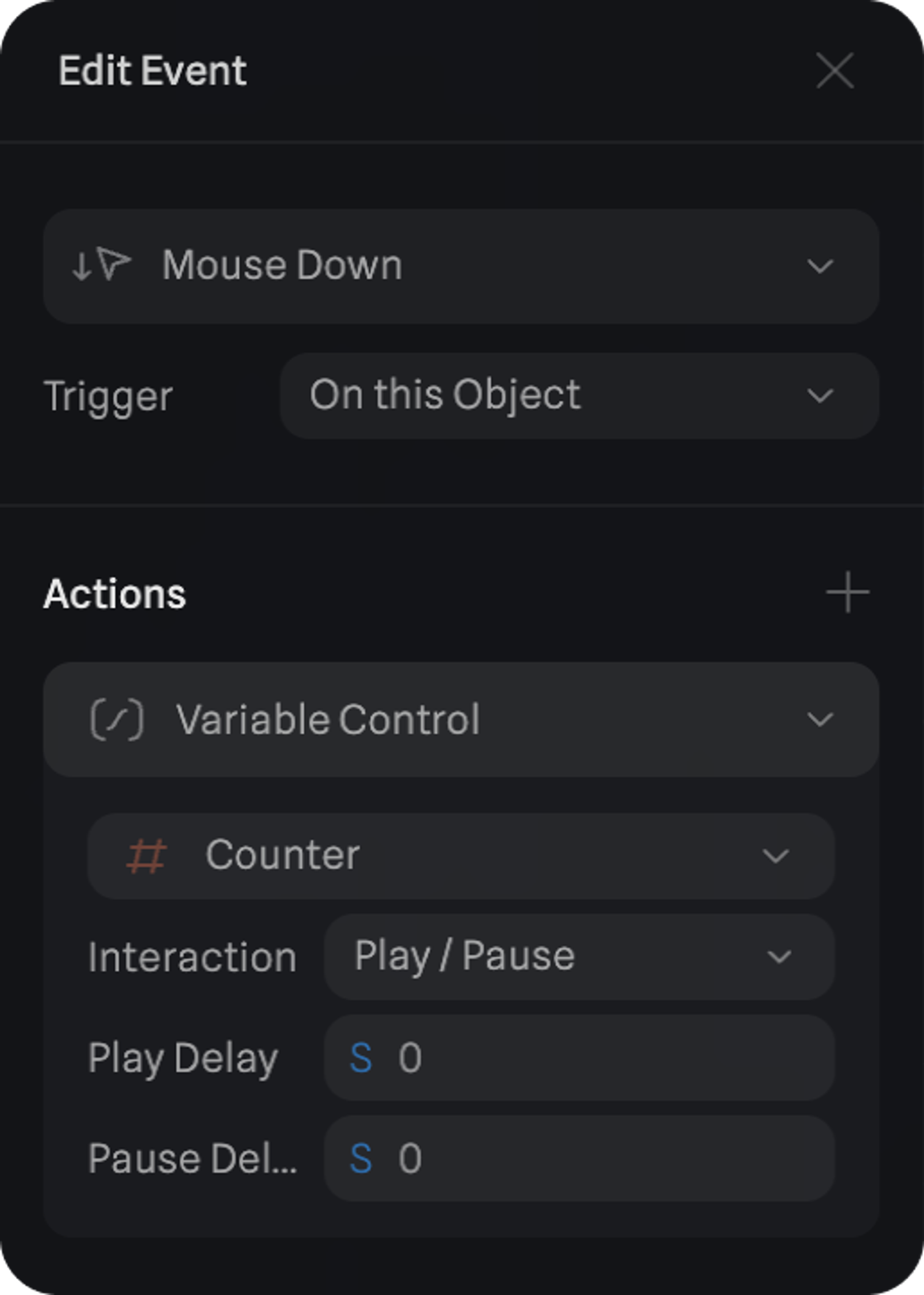
4. Add an event in the right sidebar in the events section by clicking the “+” icon.
 5. Change the event type in the top dropdown to “Mouse Down”.
6. Add an action “Variable Control” and expand it by clicking on the “>” icon.
7. Click on the dropdown in the Variable Control Action and select the variable to be controlled – the `Counter` for this example.
8. Enter Play mode and click on the cube to see it moving along the X axis over time.
5. Change the event type in the top dropdown to “Mouse Down”.
6. Add an action “Variable Control” and expand it by clicking on the “>” icon.
7. Click on the dropdown in the Variable Control Action and select the variable to be controlled – the `Counter` for this example.
8. Enter Play mode and click on the cube to see it moving along the X axis over time.
 ***
## Events supporting Variable Control Action
The following Events have access to Variable Control Action.
* [Start Event](/interaction-states-events-and-actions/events/start-event)
* [Mouse Up Event](/interaction-states-events-and-actions/events/mouse-up-event)
* [Mouse Down Event](/interaction-states-events-and-actions/events/mouse-down-event)
* [Mouse Press Event](/interaction-states-events-and-actions/events/mouse-press-event)
* [Mouse Hover Event](/interaction-states-events-and-actions/events/mouse-hover-event)
* [Key Up Event](/interaction-states-events-and-actions/events/key-up-event)
* [Key Down Event](/interaction-states-events-and-actions/events/key-down-event)
* [Key Press Event](/interaction-states-events-and-actions/events/key-press-event)
* [Scroll Event](/interaction-states-events-and-actions/events/scroll-event)
* [Drag and Drop Event](/interaction-states-events-and-actions/events/drag-and-drop-event)
* [Variable Change Event](/interaction-states-events-and-actions/events/variable-change-event)
* [Distance Event](/interaction-states-events-and-actions/events/distance-event)
* [State Change Event](/interaction-states-events-and-actions/events/state-change-event)
* [Collision Event](/interaction-states-events-and-actions/events/collision-event)
* [Trigger Area Event](/interaction-states-events-and-actions/events/trigger-area-event)
* [Screen Resize Event](/interaction-states-events-and-actions/events/screen-resize-event)
***
## Variable Control Action properties
### Select Dynamic Variable
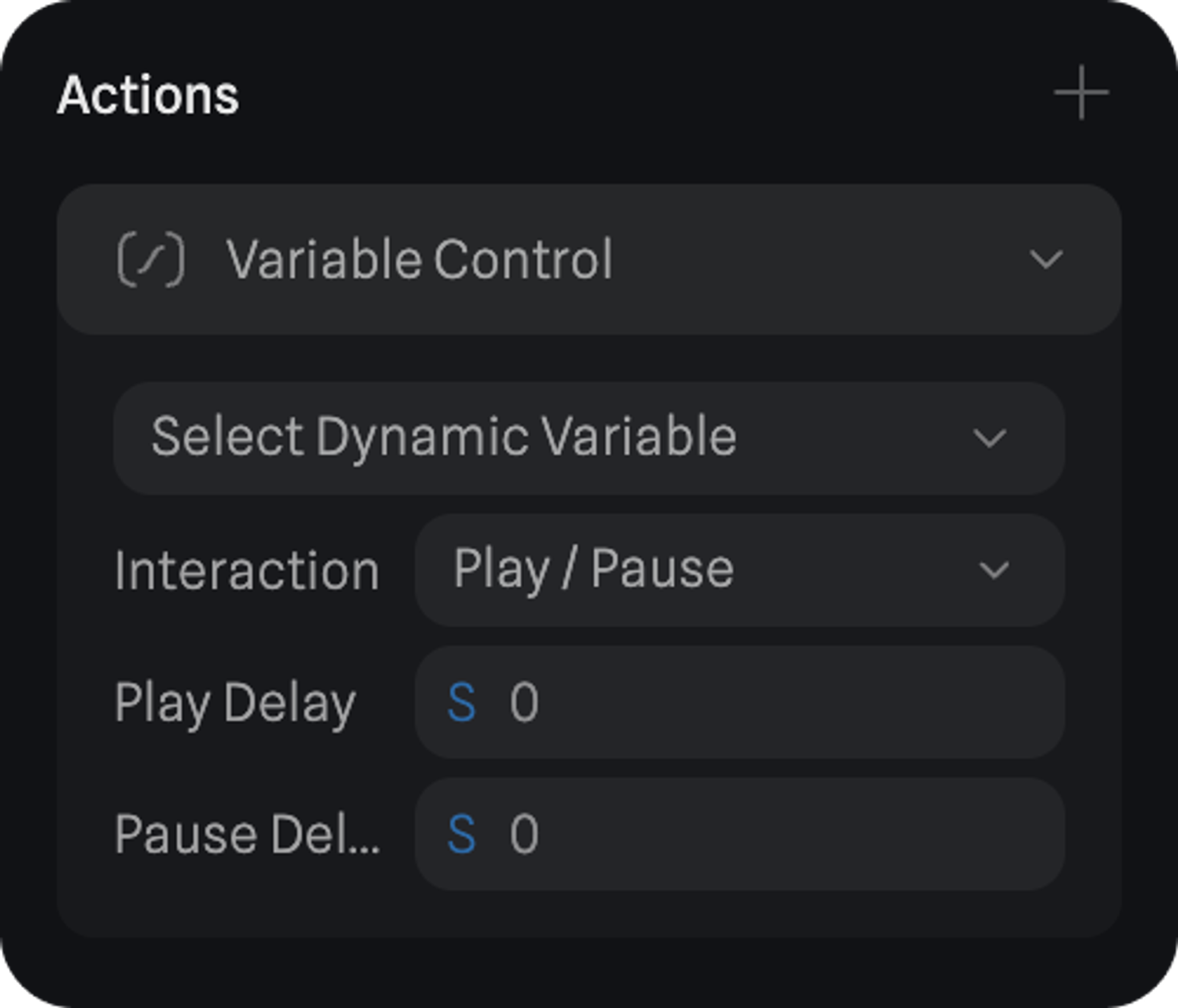
Select the dynamic variable to be updated via the Variable Control Action. The dropdown list will access any dynamic variables that are available in the current file.
### Interaction
Set the type of interaction that should occur when an event is performed.
**Play** → Plays the dynamic variable.
**Pause** → Pauses the dynamic variable.
**Play/Pause** → On event trigger, plays or pauses the dynamic variable based on the current state.
**Stop** → Stops the running dynamic variable.
**Restart** → Restarts the dynamic variable.
**Toggle - Ping Pong** → Reverses the dynamic variable.
### Delay
Adds a delay to the interaction of the Variable Control Action to take place.
***
## Events supporting Variable Control Action
The following Events have access to Variable Control Action.
* [Start Event](/interaction-states-events-and-actions/events/start-event)
* [Mouse Up Event](/interaction-states-events-and-actions/events/mouse-up-event)
* [Mouse Down Event](/interaction-states-events-and-actions/events/mouse-down-event)
* [Mouse Press Event](/interaction-states-events-and-actions/events/mouse-press-event)
* [Mouse Hover Event](/interaction-states-events-and-actions/events/mouse-hover-event)
* [Key Up Event](/interaction-states-events-and-actions/events/key-up-event)
* [Key Down Event](/interaction-states-events-and-actions/events/key-down-event)
* [Key Press Event](/interaction-states-events-and-actions/events/key-press-event)
* [Scroll Event](/interaction-states-events-and-actions/events/scroll-event)
* [Drag and Drop Event](/interaction-states-events-and-actions/events/drag-and-drop-event)
* [Variable Change Event](/interaction-states-events-and-actions/events/variable-change-event)
* [Distance Event](/interaction-states-events-and-actions/events/distance-event)
* [State Change Event](/interaction-states-events-and-actions/events/state-change-event)
* [Collision Event](/interaction-states-events-and-actions/events/collision-event)
* [Trigger Area Event](/interaction-states-events-and-actions/events/trigger-area-event)
* [Screen Resize Event](/interaction-states-events-and-actions/events/screen-resize-event)
***
## Variable Control Action properties
### Select Dynamic Variable
Select the dynamic variable to be updated via the Variable Control Action. The dropdown list will access any dynamic variables that are available in the current file.
### Interaction
Set the type of interaction that should occur when an event is performed.
**Play** → Plays the dynamic variable.
**Pause** → Pauses the dynamic variable.
**Play/Pause** → On event trigger, plays or pauses the dynamic variable based on the current state.
**Stop** → Stops the running dynamic variable.
**Restart** → Restarts the dynamic variable.
**Toggle - Ping Pong** → Reverses the dynamic variable.
### Delay
Adds a delay to the interaction of the Variable Control Action to take place.
 Restart and Toggle interactions are only available for Counter Dynamic Variable.
***
## Using Variable Control with Conditional Action
[Conditional Action](/interaction-states-events-and-actions/actions/conditional-action) allows you to create more sophisticated Variable Control Actions. Read the doc to learn more about it.
Restart and Toggle interactions are only available for Counter Dynamic Variable.
***
## Using Variable Control with Conditional Action
[Conditional Action](/interaction-states-events-and-actions/actions/conditional-action) allows you to create more sophisticated Variable Control Actions. Read the doc to learn more about it.