> ## Documentation Index
> Fetch the complete documentation index at: https://docs.spline.design/llms.txt
> Use this file to discover all available pages before exploring further.
# AI Text OpenAI API
The OpenAI API integration in Spline allows you to harness the power of advanced AI models like GPT-3.5 Turbo and GPT-4 Turbo. By connecting to OpenAI, you can generate dynamic content, automate responses, and create interactive experiences based on AI-driven outputs within your Spline projects.
***
## Creating a New OpenAI API item
1. Navigate to the **Variables & Data Panel** on the right sidebar of Spline editor (accessible when nothing is selected in editor).
2. Click on the “+” icon in top right corner.
3. Click on **OpenAI API**.
***
## Configuring OpenAI API
* **Model Selection**: Choose the AI model that best suits your needs, following models are available out of the box: GPT-3.5 Turbo, GPT-4 Turbo, GPT-4o mini, GPT-4o.
* **API Key**: Enter your OpenAI API key. [Learn how to get your API key](https://platform.openai.com/docs/quickstart).
> *Note: To use OpenAI’s API, you’ll need to set up a **paid OpenAI account** and choose a **pay-as-you-go pricing plan** or subscribe to one of the **monthly packages**.*
* **Request on Start**: Decide if the API request should automatically start when the scene loads (Yes or No).
* **Prompt**: Define the prompt that will be sent to the AI model. This prompt will guide the AI in generating the desired output.
*Note: The prompt supports non-English languages. The latest models, like GPT-4o, have better performance across non-English languages. [Learn more](https://help.openai.com/en/articles/6742369-how-do-i-use-the-openai-api-with-text-in-different-languages)*
* **Behavior**: Toggle the switch on to be able to specify additional behavior properties for the AI model. For example, you might set a persona like “I am a teacher from the 70s” to influence the AI’s responses.
***
## Response handling
* **Preview**: View the AI-generated response in real-time within the Response tab.
* **Refresh**: Click the refresh button to retrieve an updated response from the AI.
***
## Using OpenAI API in Spline
#### API Updated Event
This event triggers when the API receives a response.
[API Updated Event](/interaction-states-events-and-actions/events/api-updated-event)
#### API Request Action
You can trigger an OpenAI API request based on specific events, such as the start of the scene, a user interaction, or any other custom event in your Spline project.
[API Request Action](/interaction-states-events-and-actions/actions/api-request-action)
#### Using Input with OpenAI API
To enable the users to submit a custom prompt in an input field with Spline directly, create an Input object. Learn more about it here:
[Input](/interaction-states-events-and-actions/input)
#### Using Variables with OpenAI API
OpenAI API responses can be mapped to variables within Spline, allowing for dynamic and responsive interactions based on AI-generated content.
* **Set Variables from OpenAI Response**: Map the AI-generated responses to specific variables (e.g., Strings for text responses, Booleans for conditional logic). For example, if the AI returns a response based on user input, you can store this in a **String** variable and display it dynamically within your scene.
* **Update Object Properties**: Attach variables to object properties so that changes in the AI’s output are reflected in real-time. For instance, change the content of a text object to display the AI’s response or adjust the appearance of an object based on the sentiment of the AI’s generated text.
* **Trigger Actions Based on Variables**: Use **Variable Change Events** to trigger specific actions when the OpenAI API updates a variable. For example, if the AI generates a specific command or response, you can trigger an animation or change the scene state accordingly.
***
## Practical Use Cases
The OpenAI API integration offers limitless possibilities for creating intelligent, dynamic, and interactive experiences within your Spline projects. Here are some practical examples:
* **Interactive Chatbots**:
* Create a conversational interface where users can interact with an AI-driven character or assistant.
* Use the AI’s responses to dynamically update dialogue boxes and trigger actions based on user inputs.
* **Dynamic Content Generation**:
* Leverage the AI to generate content such as story elements or descriptions.
* Display this content within your Spline project, creating an ever-changing experience based on AI creativity.
* **Personalized Experiences**:
* Use the AI to tailor content and interactions based on user preferences or behavior.
* For instance, an AI-driven art gallery could provide custom descriptions and recommendations based on the user’s interactions with the exhibits.
***
## Best Practices
* **Testing**: Thoroughly test your OpenAI API setup to ensure that it generates the desired output and integrates seamlessly with your Spline project.
* **Prompt Engineering**: Experiment with different prompts to guide the AI toward generating the most relevant and accurate responses.
* **Warning**: Never share sensitive information, such as your OpenAI API key, publicly. Ensure that this data is securely stored and used only within a protected environment.
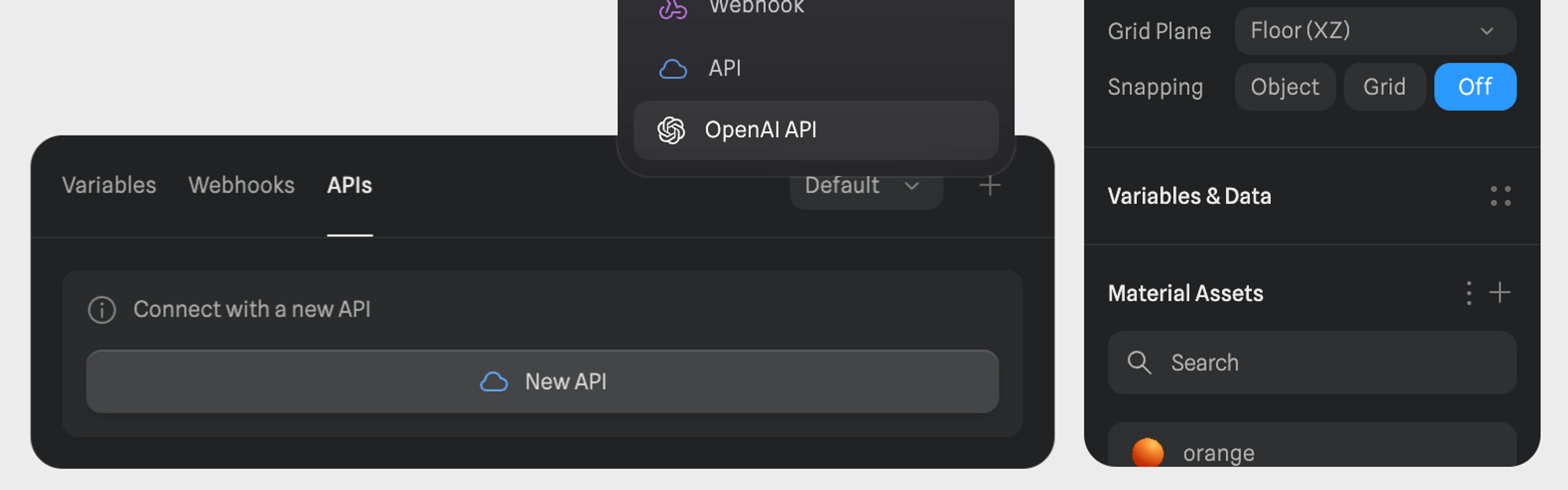 1. Navigate to the **Variables & Data Panel** on the right sidebar of Spline editor (accessible when nothing is selected in editor).
2. Click on the “+” icon in top right corner.
3. Click on **OpenAI API**.
***
## Configuring OpenAI API
* **Model Selection**: Choose the AI model that best suits your needs, following models are available out of the box: GPT-3.5 Turbo, GPT-4 Turbo, GPT-4o mini, GPT-4o.
* **API Key**: Enter your OpenAI API key. [Learn how to get your API key](https://platform.openai.com/docs/quickstart).
> *Note: To use OpenAI’s API, you’ll need to set up a **paid OpenAI account** and choose a **pay-as-you-go pricing plan** or subscribe to one of the **monthly packages**.*
* **Request on Start**: Decide if the API request should automatically start when the scene loads (Yes or No).
1. Navigate to the **Variables & Data Panel** on the right sidebar of Spline editor (accessible when nothing is selected in editor).
2. Click on the “+” icon in top right corner.
3. Click on **OpenAI API**.
***
## Configuring OpenAI API
* **Model Selection**: Choose the AI model that best suits your needs, following models are available out of the box: GPT-3.5 Turbo, GPT-4 Turbo, GPT-4o mini, GPT-4o.
* **API Key**: Enter your OpenAI API key. [Learn how to get your API key](https://platform.openai.com/docs/quickstart).
> *Note: To use OpenAI’s API, you’ll need to set up a **paid OpenAI account** and choose a **pay-as-you-go pricing plan** or subscribe to one of the **monthly packages**.*
* **Request on Start**: Decide if the API request should automatically start when the scene loads (Yes or No).
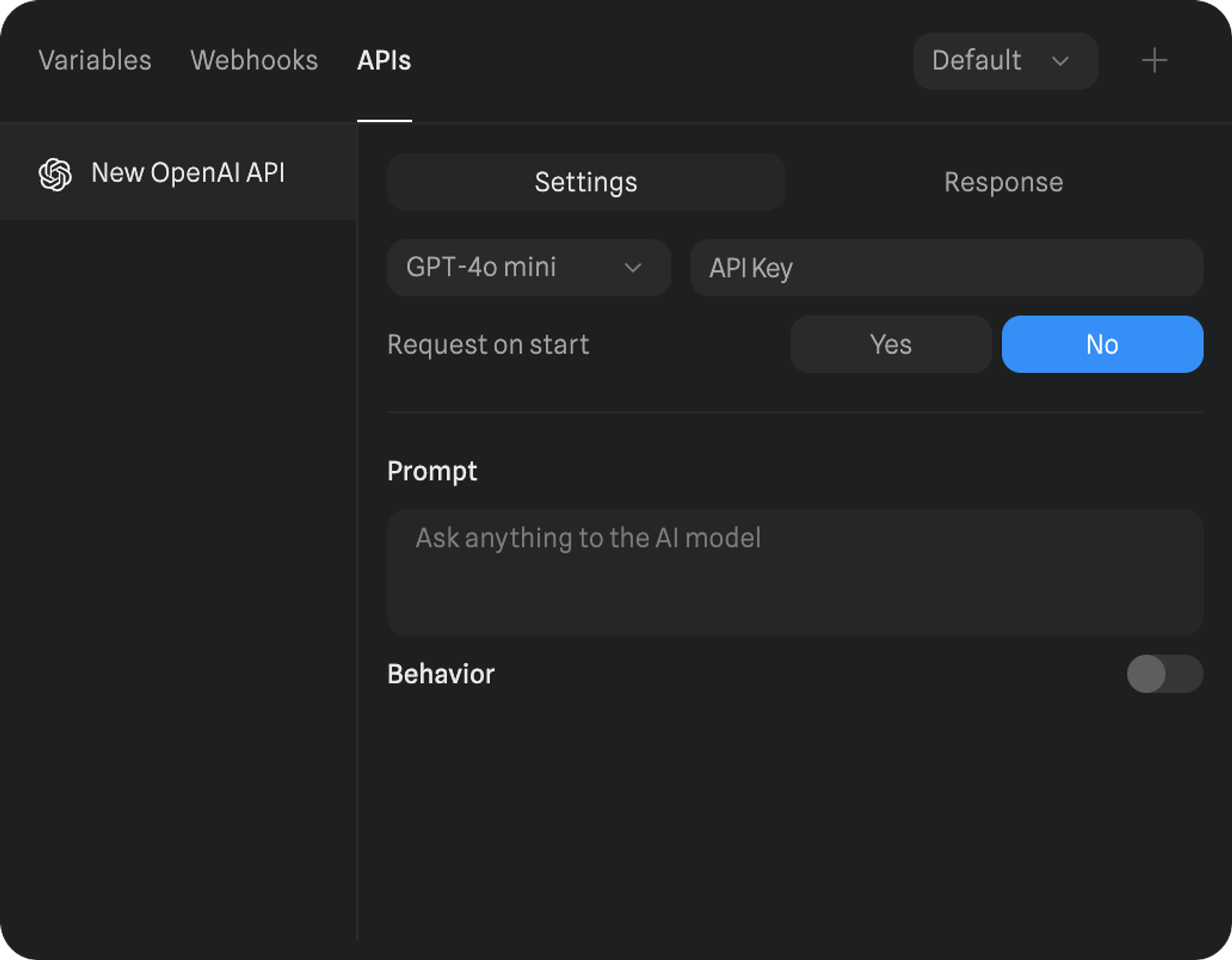 * **Prompt**: Define the prompt that will be sent to the AI model. This prompt will guide the AI in generating the desired output.
*Note: The prompt supports non-English languages. The latest models, like GPT-4o, have better performance across non-English languages. [Learn more](https://help.openai.com/en/articles/6742369-how-do-i-use-the-openai-api-with-text-in-different-languages)*
* **Behavior**: Toggle the switch on to be able to specify additional behavior properties for the AI model. For example, you might set a persona like “I am a teacher from the 70s” to influence the AI’s responses.
***
## Response handling
* **Preview**: View the AI-generated response in real-time within the Response tab.
* **Refresh**: Click the refresh button to retrieve an updated response from the AI.
***
## Using OpenAI API in Spline
#### API Updated Event
This event triggers when the API receives a response.
[API Updated Event](/interaction-states-events-and-actions/events/api-updated-event)
#### API Request Action
You can trigger an OpenAI API request based on specific events, such as the start of the scene, a user interaction, or any other custom event in your Spline project.
[API Request Action](/interaction-states-events-and-actions/actions/api-request-action)
#### Using Input with OpenAI API
To enable the users to submit a custom prompt in an input field with Spline directly, create an Input object. Learn more about it here:
[Input](/interaction-states-events-and-actions/input)
#### Using Variables with OpenAI API
OpenAI API responses can be mapped to variables within Spline, allowing for dynamic and responsive interactions based on AI-generated content.
* **Set Variables from OpenAI Response**: Map the AI-generated responses to specific variables (e.g., Strings for text responses, Booleans for conditional logic). For example, if the AI returns a response based on user input, you can store this in a **String** variable and display it dynamically within your scene.
* **Update Object Properties**: Attach variables to object properties so that changes in the AI’s output are reflected in real-time. For instance, change the content of a text object to display the AI’s response or adjust the appearance of an object based on the sentiment of the AI’s generated text.
* **Trigger Actions Based on Variables**: Use **Variable Change Events** to trigger specific actions when the OpenAI API updates a variable. For example, if the AI generates a specific command or response, you can trigger an animation or change the scene state accordingly.
***
## Practical Use Cases
* **Prompt**: Define the prompt that will be sent to the AI model. This prompt will guide the AI in generating the desired output.
*Note: The prompt supports non-English languages. The latest models, like GPT-4o, have better performance across non-English languages. [Learn more](https://help.openai.com/en/articles/6742369-how-do-i-use-the-openai-api-with-text-in-different-languages)*
* **Behavior**: Toggle the switch on to be able to specify additional behavior properties for the AI model. For example, you might set a persona like “I am a teacher from the 70s” to influence the AI’s responses.
***
## Response handling
* **Preview**: View the AI-generated response in real-time within the Response tab.
* **Refresh**: Click the refresh button to retrieve an updated response from the AI.
***
## Using OpenAI API in Spline
#### API Updated Event
This event triggers when the API receives a response.
[API Updated Event](/interaction-states-events-and-actions/events/api-updated-event)
#### API Request Action
You can trigger an OpenAI API request based on specific events, such as the start of the scene, a user interaction, or any other custom event in your Spline project.
[API Request Action](/interaction-states-events-and-actions/actions/api-request-action)
#### Using Input with OpenAI API
To enable the users to submit a custom prompt in an input field with Spline directly, create an Input object. Learn more about it here:
[Input](/interaction-states-events-and-actions/input)
#### Using Variables with OpenAI API
OpenAI API responses can be mapped to variables within Spline, allowing for dynamic and responsive interactions based on AI-generated content.
* **Set Variables from OpenAI Response**: Map the AI-generated responses to specific variables (e.g., Strings for text responses, Booleans for conditional logic). For example, if the AI returns a response based on user input, you can store this in a **String** variable and display it dynamically within your scene.
* **Update Object Properties**: Attach variables to object properties so that changes in the AI’s output are reflected in real-time. For instance, change the content of a text object to display the AI’s response or adjust the appearance of an object based on the sentiment of the AI’s generated text.
* **Trigger Actions Based on Variables**: Use **Variable Change Events** to trigger specific actions when the OpenAI API updates a variable. For example, if the AI generates a specific command or response, you can trigger an animation or change the scene state accordingly.
***
## Practical Use Cases