> ## Documentation Index
> Fetch the complete documentation index at: https://docs.spline.design/llms.txt
> Use this file to discover all available pages before exploring further.
# Scroll Event
The Scroll Event requires the user to scroll in order to go through the transitions added inside.
There are two types available on the Scroll Event
* **Steps** → The amount of scroll needed to go from the beginning of a transition to the end.
* **Scroll →** lets you transition between states (set up in the actions section) based on the scroll of your web page.
Here are the different Actions you can trigger with the Scroll Event:
* [Transition Action](/interaction-states-events-and-actions/actions/transition-action)
* [Animation Action](/interaction-states-events-and-actions/actions/animation-action)
* [Create Object Action](/interaction-states-events-and-actions/actions/create-object-action)
* [Set Variable Action](/interaction-states-events-and-actions/actions/set-variable-action)
* [Variable Control Action](/interaction-states-events-and-actions/actions/variable-control-action)
* [Conditional Action](/interaction-states-events-and-actions/actions/conditional-action)
* [Clear Local Storage Action](/interaction-states-events-and-actions/actions/clear-local-storage-action)
* [API Request Action](/interaction-states-events-and-actions/actions/api-request-action)
 ***
### Type Scroll
The **Scroll** event has a Type called **Scroll** which only works with the ***Viewer export***.
This type lets you transition between states (set up in the actions section) based on the scroll of your web page.
*👉 Check out the demo at: [https://viewer-scroll-event.framer.website/](https://viewer-scroll-event.framer.website/)*
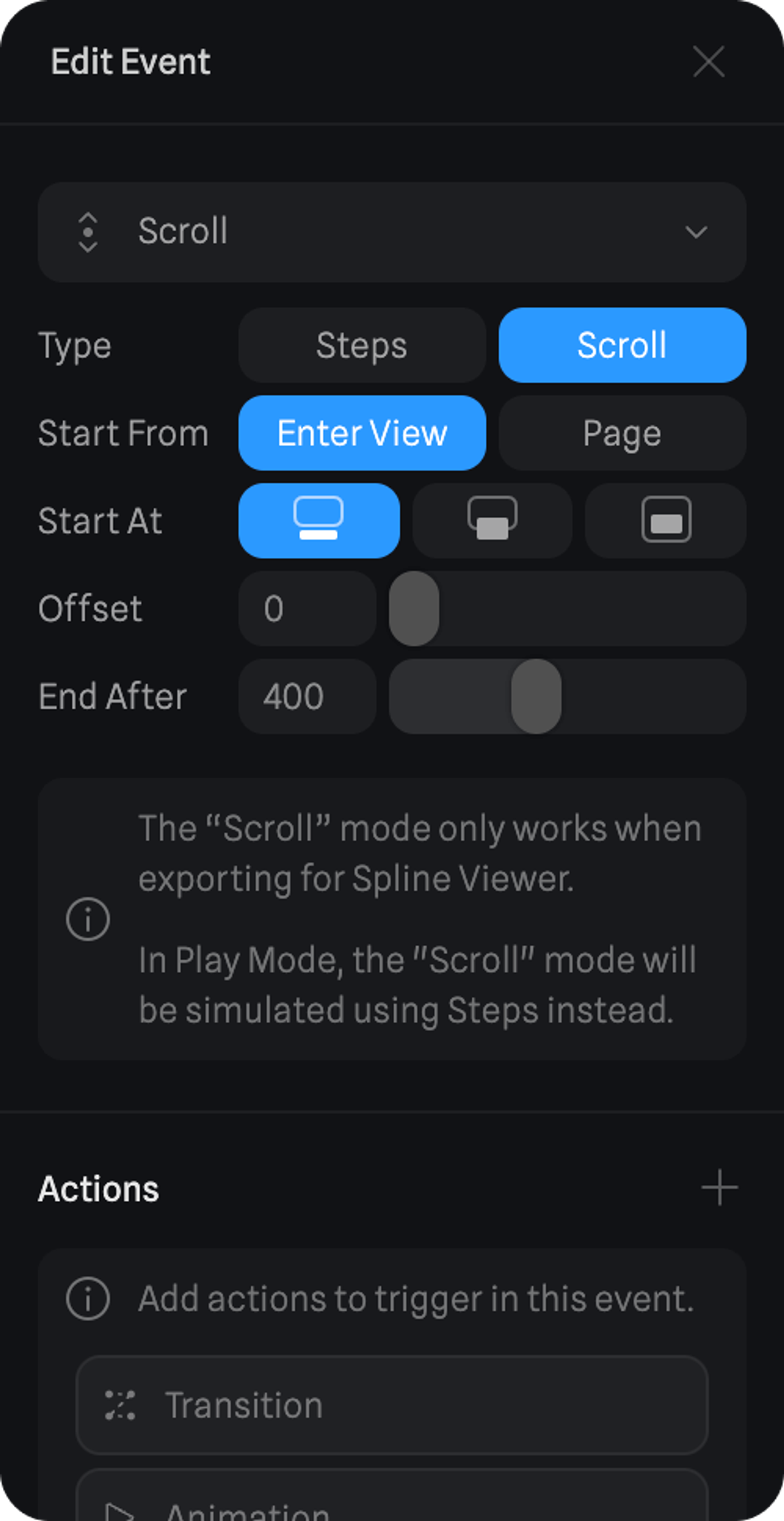
#### Start From - Enter View
Objects with scroll events will start animating once the viewer component comes into view on your web page.
* **Start At**
* **Top** → Animations will start once the top of the component gets into view.
* **Middle** → Animations will start once the middle of the component gets into view.
* **Bottom** → Animations will start once the bottom of the component gets into view.
* **Offset** - For each Start At option, you can still add an offset to that option so it starts later.
* **End After** - Defines at what scroll amount from the set Start At location (measured in pixels) should the Transition Action reach its final state.
***
### Type Scroll
The **Scroll** event has a Type called **Scroll** which only works with the ***Viewer export***.
This type lets you transition between states (set up in the actions section) based on the scroll of your web page.
*👉 Check out the demo at: [https://viewer-scroll-event.framer.website/](https://viewer-scroll-event.framer.website/)*
#### Start From - Enter View
Objects with scroll events will start animating once the viewer component comes into view on your web page.
* **Start At**
* **Top** → Animations will start once the top of the component gets into view.
* **Middle** → Animations will start once the middle of the component gets into view.
* **Bottom** → Animations will start once the bottom of the component gets into view.
* **Offset** - For each Start At option, you can still add an offset to that option so it starts later.
* **End After** - Defines at what scroll amount from the set Start At location (measured in pixels) should the Transition Action reach its final state.
 #### Start From - Page
Objects with scroll events will start animating at the defined Start At the position of your web page, which means the height from the top of the webpage measured in pixels.
* **Start At** - The position on your web page where the scroll events should start animating.
* **End After** - Defines at what scroll amount (measured in pixels from the top of the web page) should the Transition Action reach its final state.
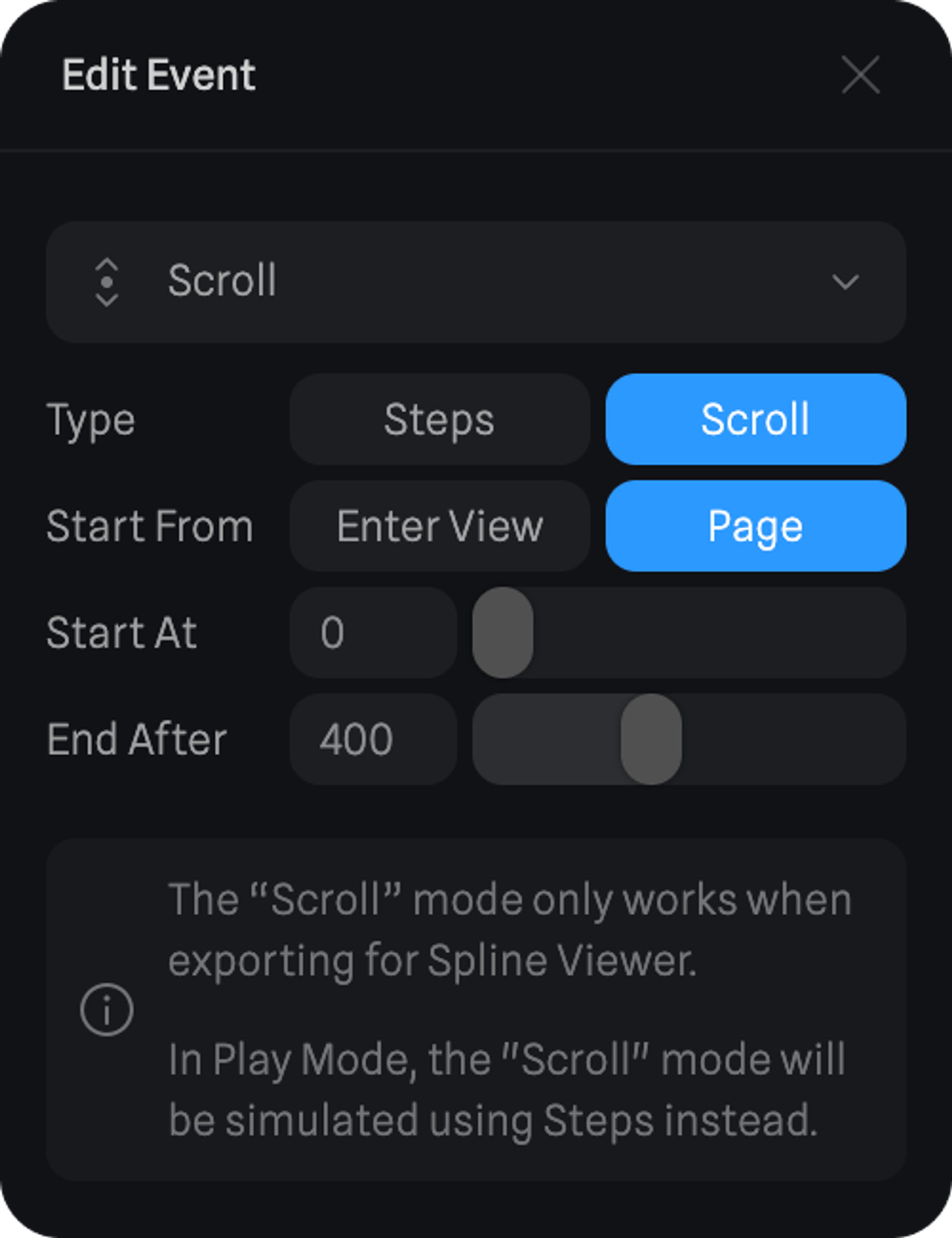
#### Start From - Page
Objects with scroll events will start animating at the defined Start At the position of your web page, which means the height from the top of the webpage measured in pixels.
* **Start At** - The position on your web page where the scroll events should start animating.
* **End After** - Defines at what scroll amount (measured in pixels from the top of the web page) should the Transition Action reach its final state.
 ***
> *Scroll to interact! 👆 The Scroll Event uses scroll to go through the transitions added inside.*
***
> *Scroll to interact! 👆 The Scroll Event uses scroll to go through the transitions added inside.*