> ## Documentation Index
> Fetch the complete documentation index at: https://docs.spline.design/llms.txt
> Use this file to discover all available pages before exploring further.
# AI Textures
Use Artificial Intelligence to generate textures like **grass**, **concrete**, **wood**, **ceramic**, and **patterns** just by typing!
**AI Texture Generation** is a paid feature, you’ll need an active **Professional** or **Team** subscription and an active **Spline AI Add-on** subscription.
***
## How to Generate Textures
To start with AI Texture Generation, you’ll need to:
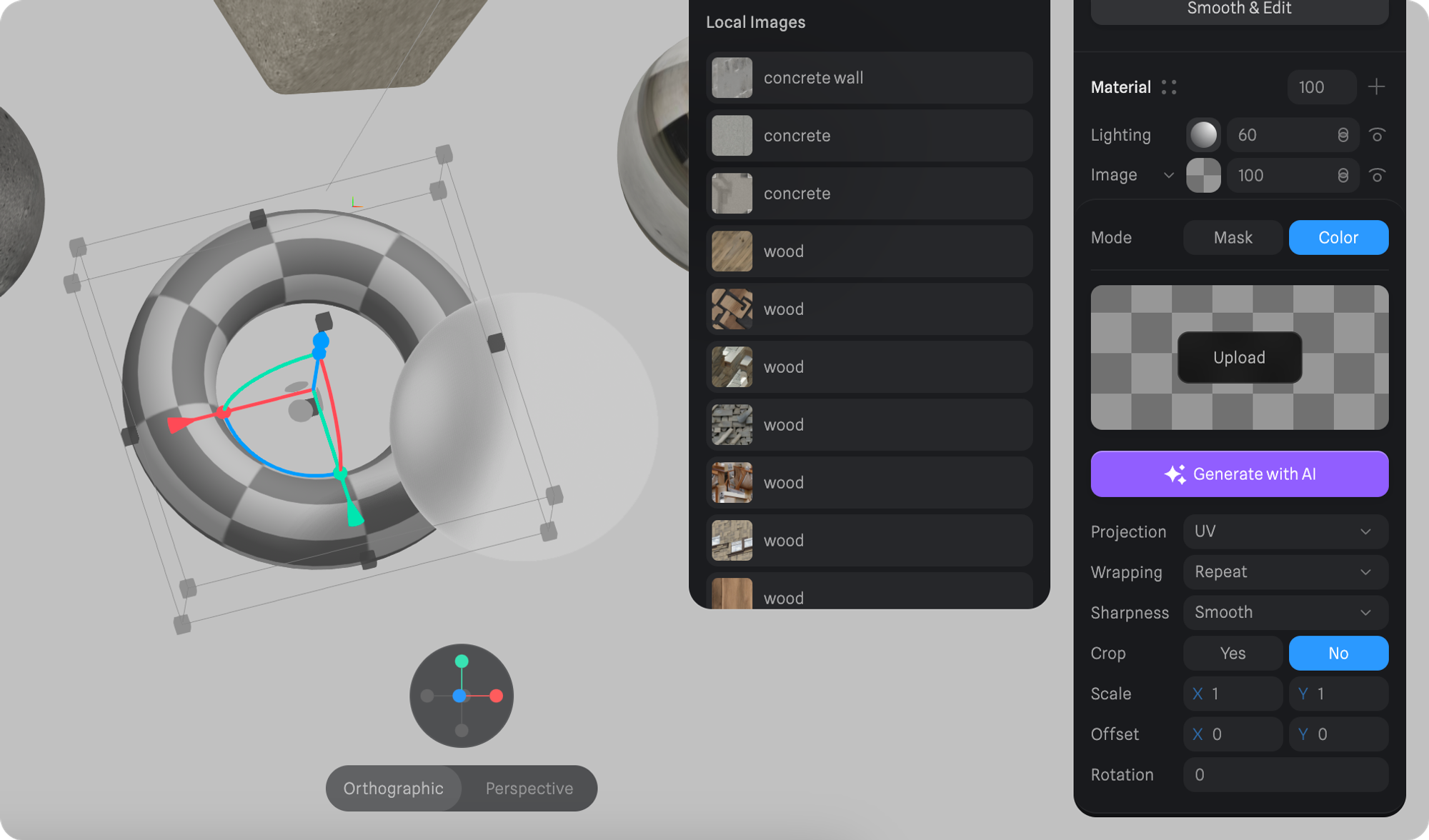
1. Select an object.
2. Change the layer to **Image** type by clicking on the dropdown icon at the **Materials**.
3. Open the **Image Panel** by clicking on the thumbnail.
4. Click on the **Generate with AI** button in the Image panel.
 ## Generate AI Texture Panel
On this panel, you’ll be able to generate new textures by writing your text prompts on the input field.
1. Click on the input field **“Type to create anything…”**
2. **Type in some text**. Below the input, you’ll find some suggestions to help you get started and spark some ideas. Feel free to go wild and experiment with the results!
3. **Click on the purple sparkle button** or hit enter to generate and apply the texture.
## Generate AI Texture Panel
On this panel, you’ll be able to generate new textures by writing your text prompts on the input field.
1. Click on the input field **“Type to create anything…”**
2. **Type in some text**. Below the input, you’ll find some suggestions to help you get started and spark some ideas. Feel free to go wild and experiment with the results!
3. **Click on the purple sparkle button** or hit enter to generate and apply the texture.
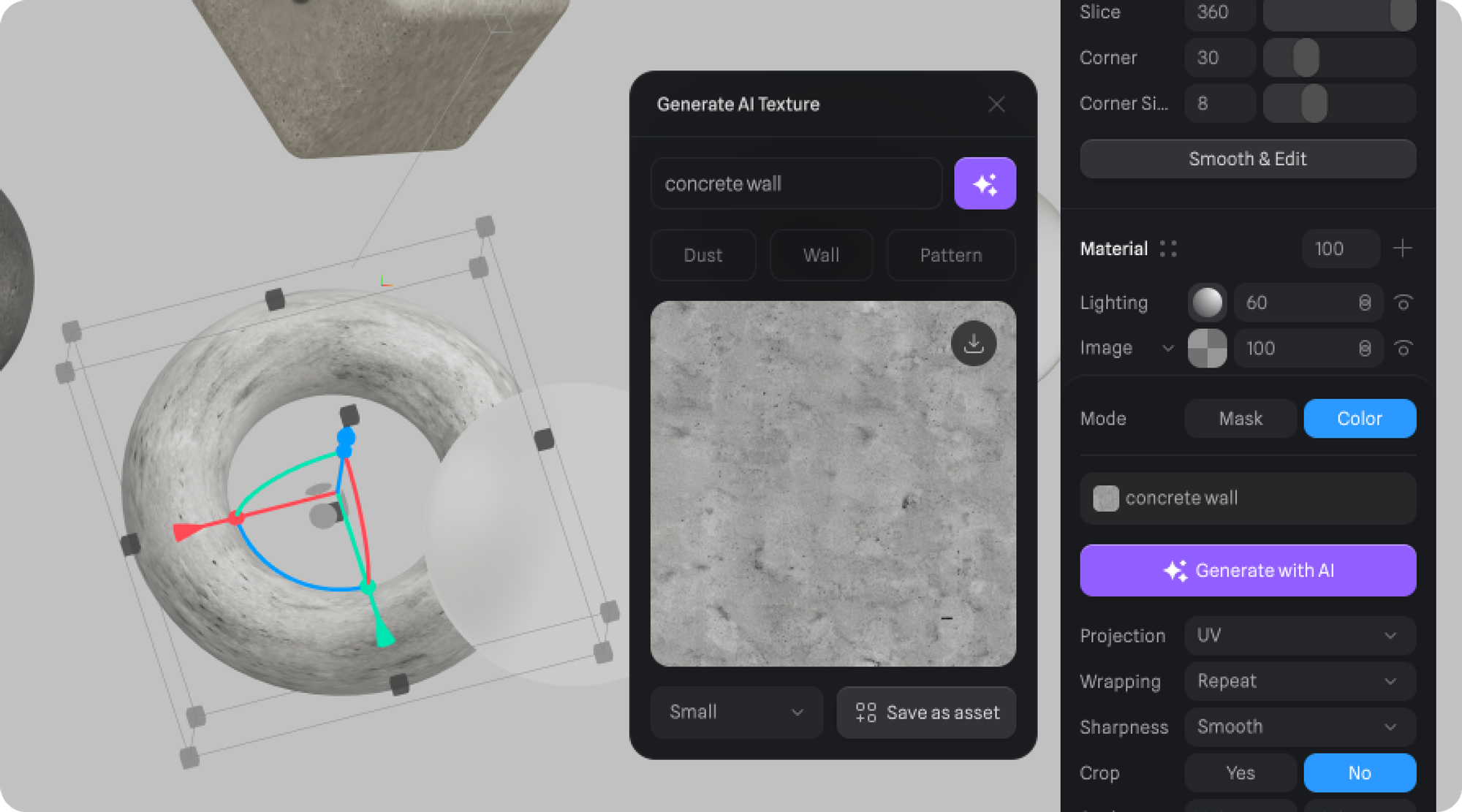 Additional features on the panel:
* Download the texture as an image by clicking on the download icon.
* Change the resolution of the texture via the dropdown at the bottom:
* Small (512 x 512 px)
* Medium (1024x1024 px)
* Large (2048 x 2048 px)
* Save it as an image asset by clicking on the “Save as asset” button at the bottom
Additional features on the panel:
* Download the texture as an image by clicking on the download icon.
* Change the resolution of the texture via the dropdown at the bottom:
* Small (512 x 512 px)
* Medium (1024x1024 px)
* Large (2048 x 2048 px)
* Save it as an image asset by clicking on the “Save as asset” button at the bottom