

AI 3D Generation
AI 3D Generation is a new feature in Spline that allows anyone to transform textual descriptions and 2D images into 3D models with the help of AI.
AI 3D Generation is a paid feature. It runs on your workspace's monthly AI credits, included with every paid plan — Hobby, Pro and Max. See AI credits for the monthly allowance on each plan.
Where to find it
Go to Generate from your dashboard. The left rail holds the generate views: Discover to browse what others have made (where it opens), 3D and Image for the kind of thing you're generating, and Assets for everything you've generated. The rail starts as icons — the toggle in each view's header widens it to show the labels — with a Settings shortcut at the bottom.
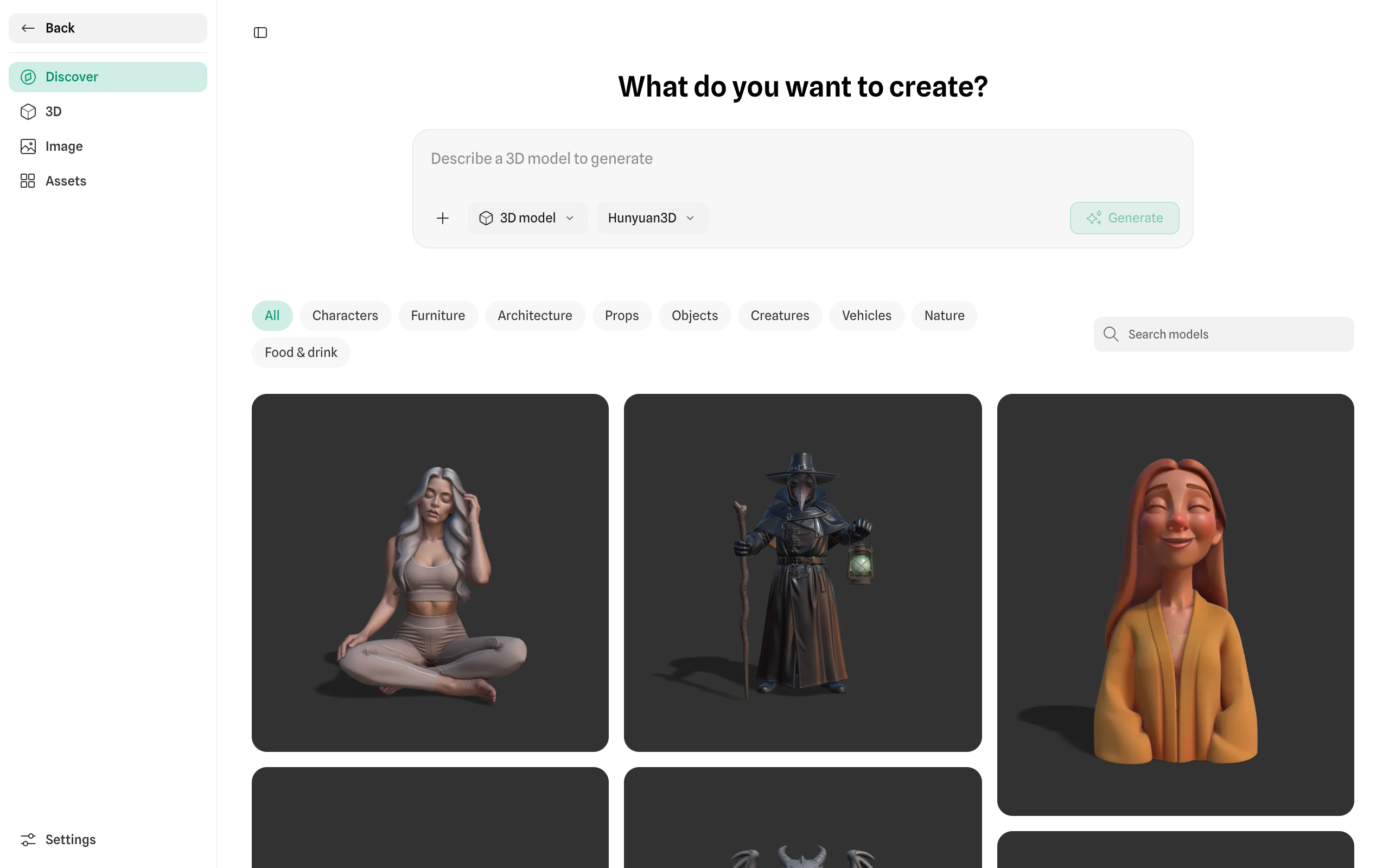
You can also generate from inside the 3D editor — press the AI button on the toolbar and choose AI Generate, and the finished mesh drops straight into your open scene.
Generating a model
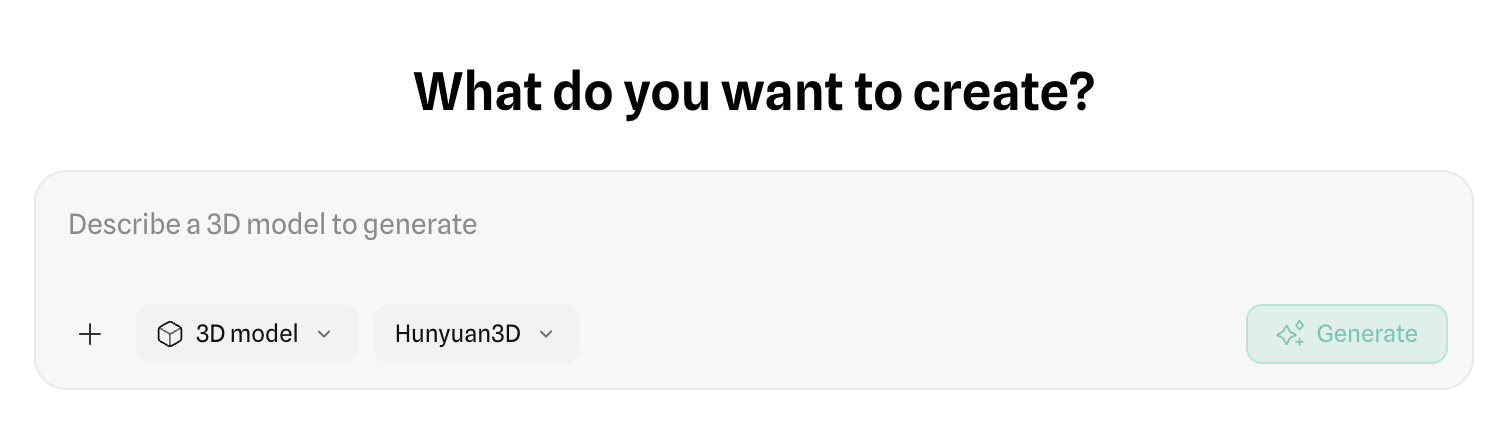
- Type what you want in the prompt bar. It reads "Describe a 3D model to generate" when you're set to 3D.
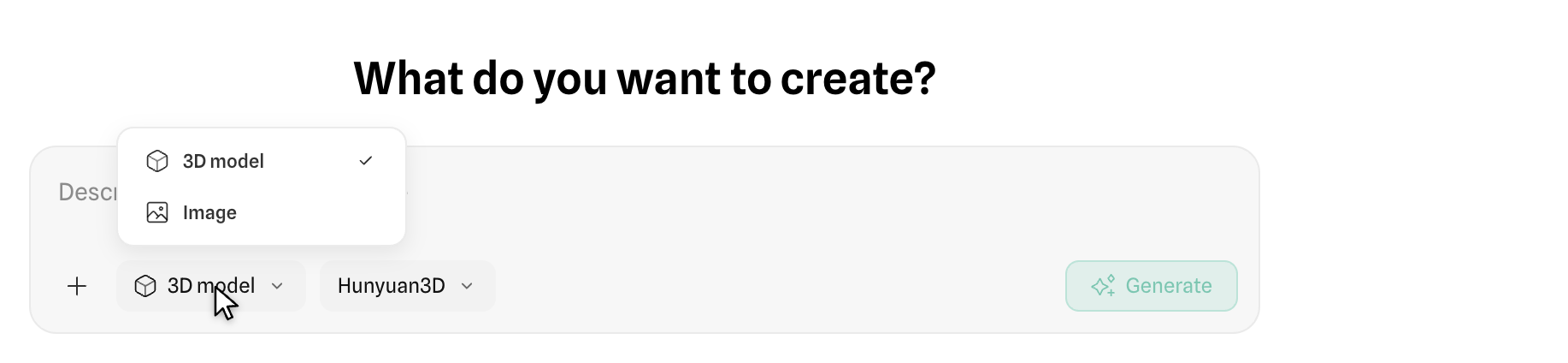
- Set the Output type if needed. The prompt bar switches between 3D and Image — leave it on 3D for a model.
- Optionally add a reference image with Add a reference image next to the prompt. Front-facing shots of a single object work best.
- Pick a model, or leave the default — see Choosing a model.
- Send it. You'll get a set of image previews — pick the one you like best and Spline builds the 3D model from it.
If none of the previews look right, adjust your prompt and send again rather than picking the closest one.
What it costs
The options panel shows an Estimated cost before you send. Generations use your workspace's monthly AI credits; a banner appears as you approach your limit.
Choosing a model
The Model dropdown sets which engine builds your 3D model.
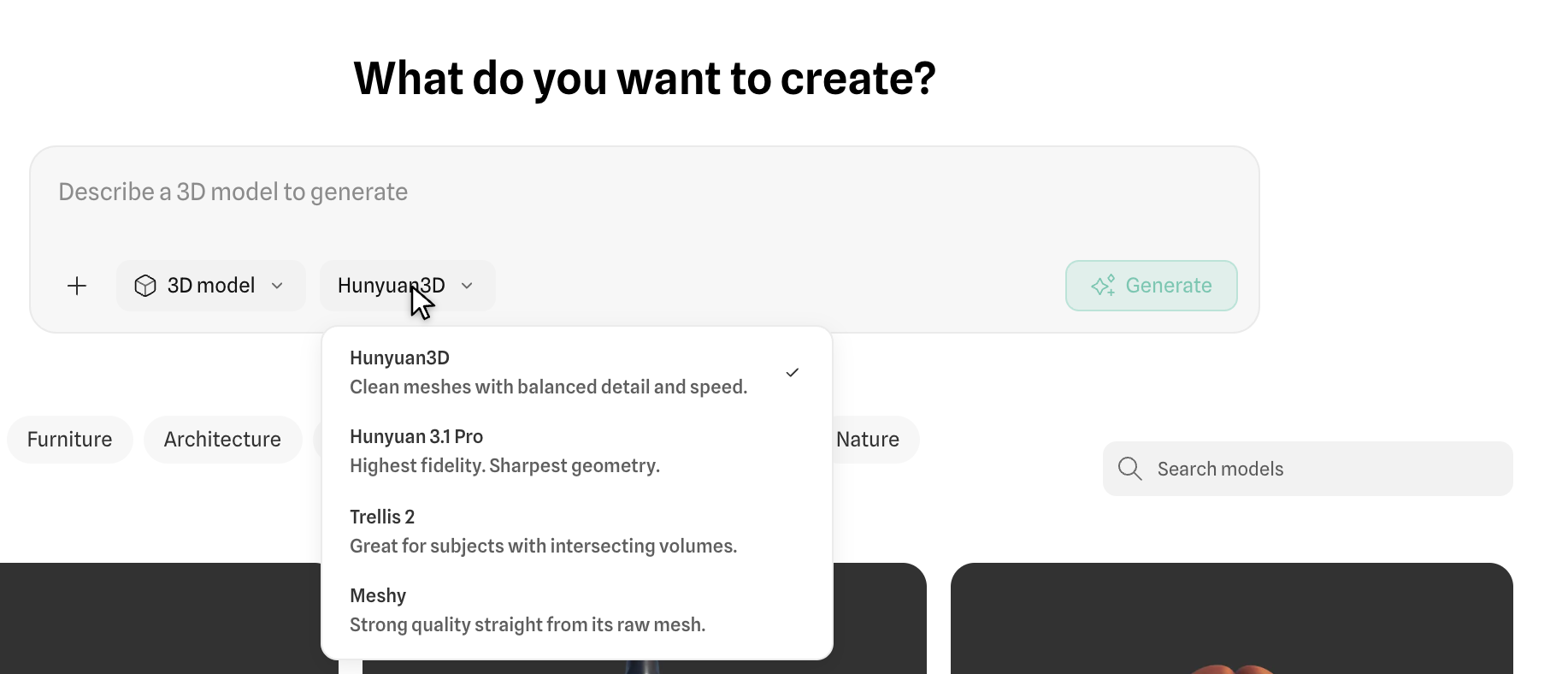
| Model | Use it for |
|---|---|
| Hunyuan3D (default) | Balanced detail and speed |
| Hunyuan 3.1 Pro | The sharpest, most detailed geometry |
| Trellis 2 | Shapes that pass through each other — chains, knots, handles, crossing limbs |
| Meshy | A clean result you can use with little cleanup |
Leave it on Hunyuan3D unless you have a reason not to.
Try more than one
You can run the same image through several models and keep all the results. A switcher appears under the preview so you can flip between them and keep the best one — switching is instant and doesn't use more credits.
Reviewing the result
Use the toolbar above the preview to check the model properly before you commit to it:
| Control | What it does |
|---|---|
| Wireframe | Shows the mesh structure |
| Clay mode | Hides colour and texture so you can see the shape |
| Preview maps | Shows the generated textures |
| Environment | Changes the lighting |
| Auto-rotate | Spins the model so you can check every side |
| Download model | Saves the model to your machine |
| Open in editor | Opens the model in a Spline scene |
Check it in Clay mode — texture can hide an uneven shape. Try a different Environment too, since your scene's lighting won't match the preview's.
Getting it into your scene
Open in editor puts the model into a Spline scene, where you can position, style and animate it like anything else. If you generated from inside the editor, it's added to your open scene automatically.
Generated models have more detail than hand-built ones, so a scene with several of them can slow down. See How to optimize your scene.
Finding your earlier generations
Assets in the left rail keeps everything you've made in one grid, with search and a filter for All, Images or 3D. Nothing is deleted, so generate freely and pick your favourite later.
Discover is a feed of generations you can browse for ideas, filtered by category — characters, creatures, vehicles, architecture, furniture, food, nature, props and objects.
Components of a Prompt
Text to 3D
Text to 3D allows you to create 3D models from textual descriptions. Simply describe an object with words, and AI will interpret these descriptions and generate a 3D model that matches them.

Image to 3D
Image to 3D converts 2D images into 3D models. By analyzing an image uploaded, it uses algorithms to estimate depth and structure, then constructs a 3D representation of the depicted scene or object. For better results, the image should be a front-facing image of an object.

Text + Image to 3D
With Spline you can use text + image in a single prompt, combining both textual descriptions and 2D images to create 3D models. This approach leverages the strengths of both inputs: the image provides a visual reference, while the text can specify other details that might not be clear or visible in the image.

Prompt Recommendations
Follow this quick guide to learn how to get the best results when using Spline AI.
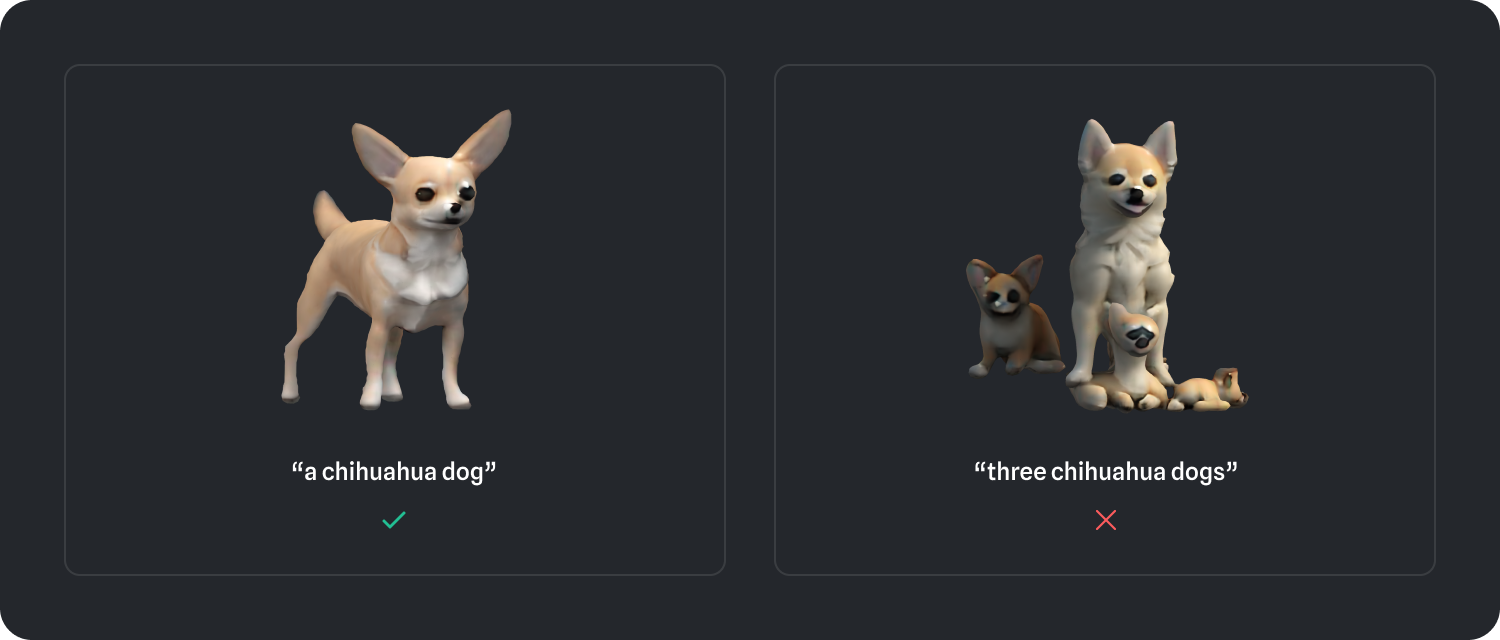
Focus on a single object
It’s better to focus on a single object rather than trying to generate a composition in one go.
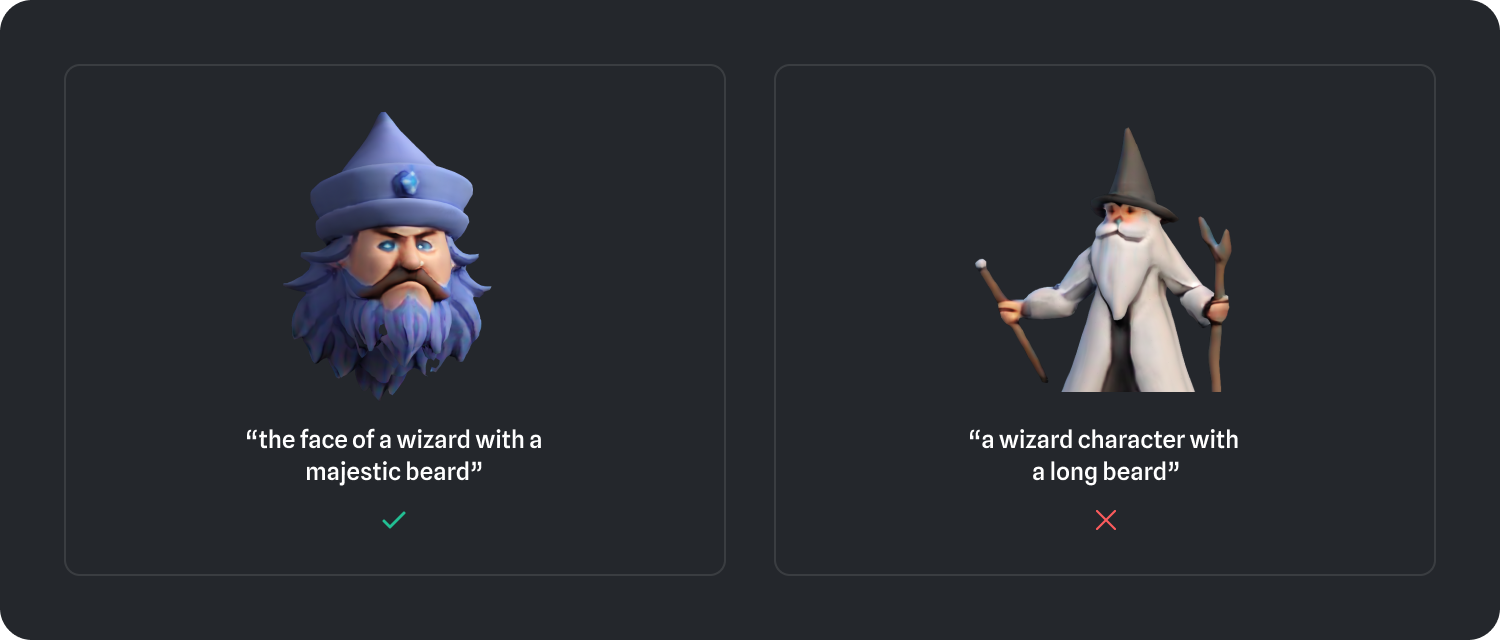
Close-ups will offer more details
A close-up of an object or face will generate better details while a full body character might lose details on the face.
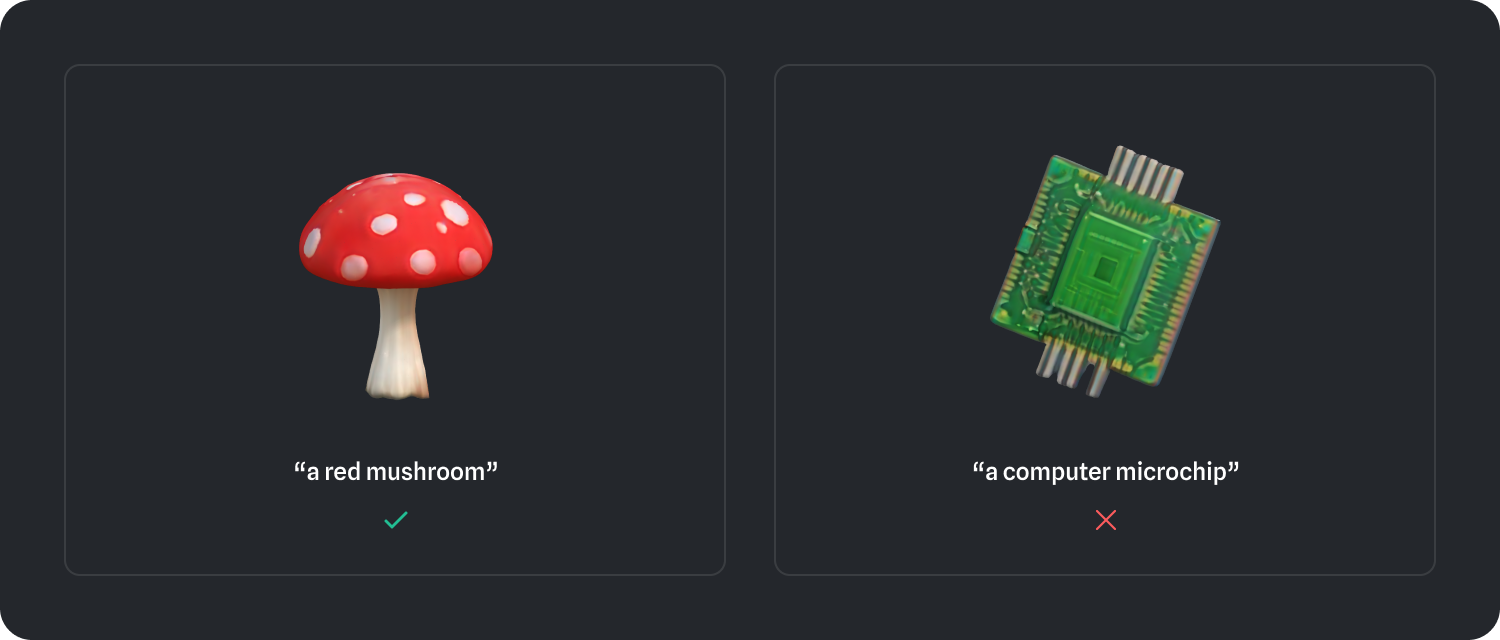
Focus on objects that don’t require high-precision
Models with more organic shapes will generate better results, while objects with very sharp edges might not look as good.
Limitations
The development and research of artificial intelligence (AI) is an ongoing process with several factors that can limit its capabilities. You will likely find bugs and some issues, but we are improving the system daily. Your feedback can help us improve it.
Questions & Answers
Can I use it for free?
AI 3D Generation draws on your workspace's monthly AI credits, which are included with every paid plan — there is no separate AI subscription. Your account must be in good standing and active. Generating 3D assets consumes credits for both image previews and mesh generation, so a single model can cost more than one generation. See AI credits for each plan's monthly allowance and how to add more.
Do I need a high-spec device to use Spline AI 3D generation?
Spline AI 3D Generation runs in the cloud and it does not require special hardware. Spline AI 3D generation works on any device that can run Spline.
How is this version of Spline AI different from the previous one?
The new version of Spline AI is focused on making object generation easier for everyone. Since AI is an ongoing research field, changes are expected over time as we find better ways to integrate AI within Spline to improve the 3D creation workflow. We will continue our research and development to make 3D more accessible for everyone.
How will Spline AI 3D Generation use my data?
We take privacy very seriously. We only collect data related to your prompts if you decide to share it as feedback. All user data and Spline AI data is handled by Spline, on our own servers.