Exporting in Hana
You can export any individual frame from the canvas in Hana for sharing online via a Public URL or integrate it into other tools using the Embed Code (e.g., Webflow, Framer, HTML/JS projects, etc).
How to export a frame
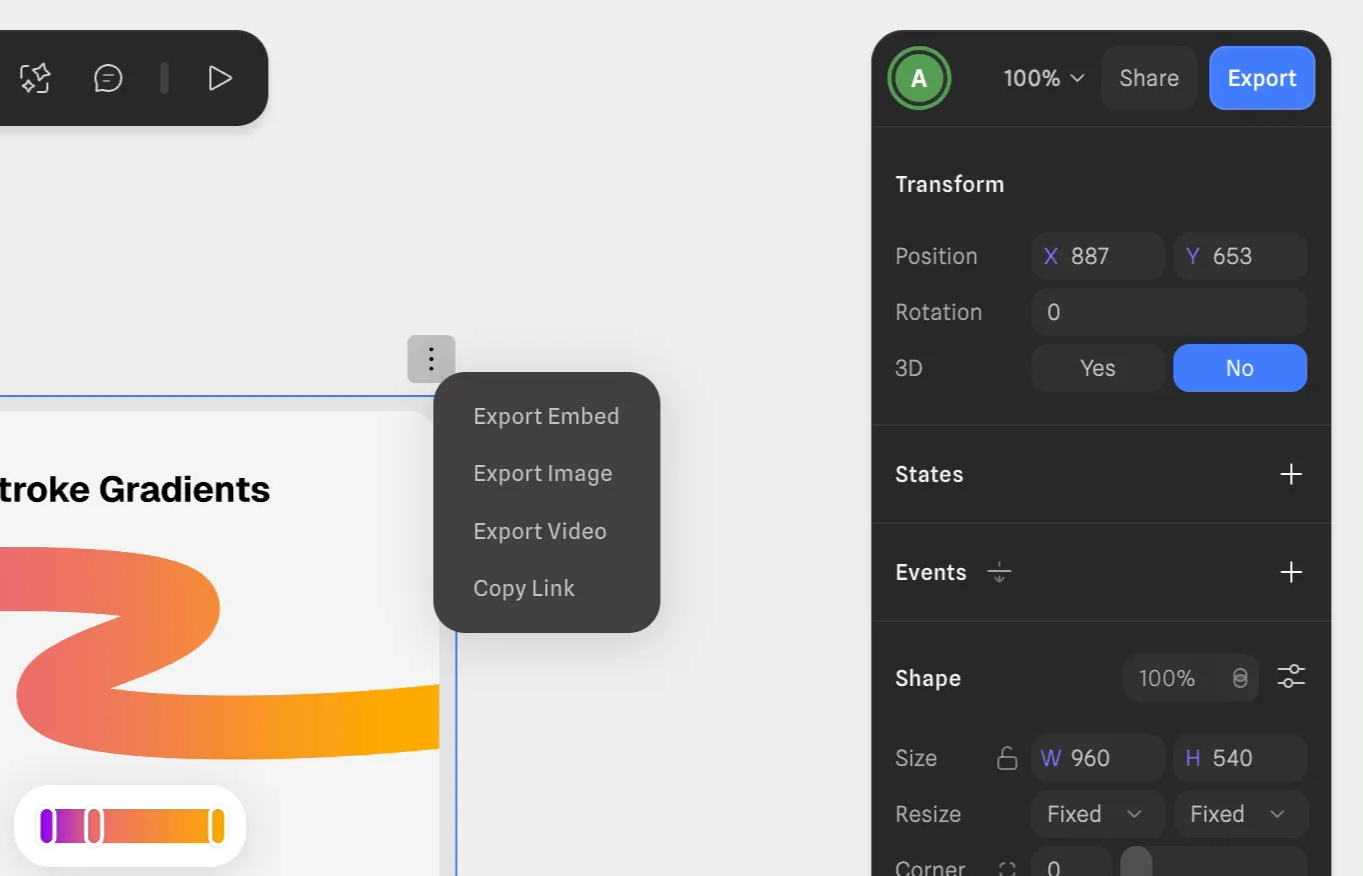
From a frame context menu:
- Select the parent frame you want to export. Nested/Child frames cannot be exported.
- Click the three-dot menu at the top-right corner of the frame’s border and then on
Export Embed - Alternately, Click the export button on top-right corner of the canvas to open the Frame Export panel.
From the inspector sidebar:
- Select the frame you want to export.
- On the inspector sidebar, click the + icon on the Export panel.
- An Embed Link will be generated for your frame.
- Press the settings icon to open the export modal to tweak any settings or export as an image.
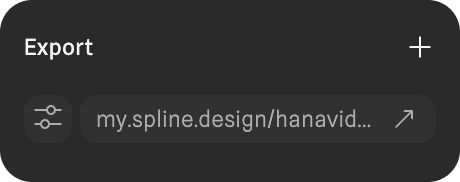
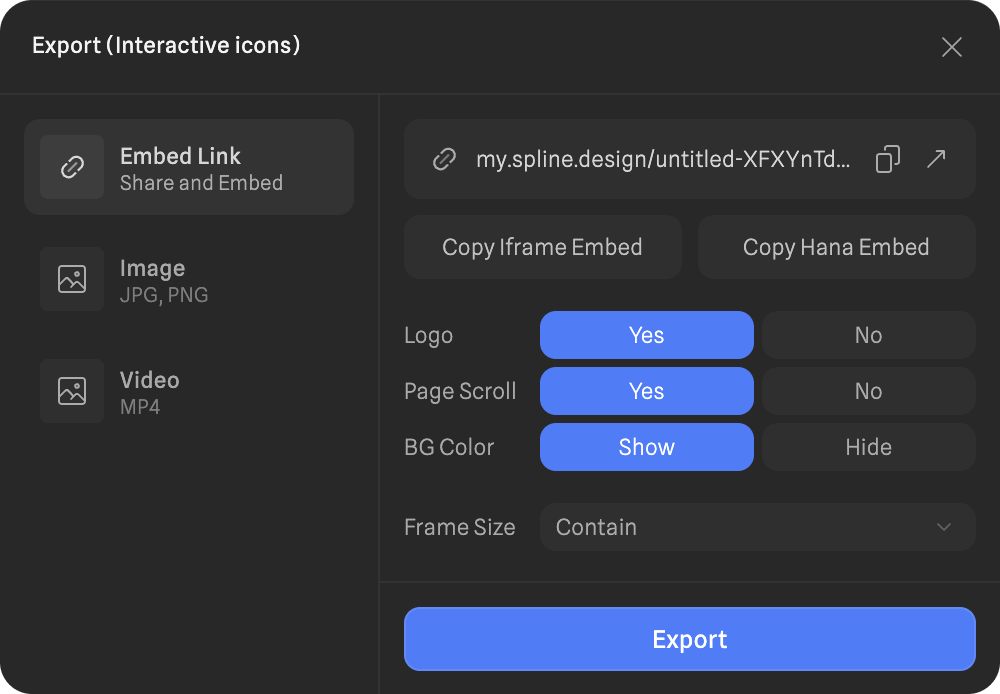
Exporting as Embed Link
Export Options
-
Public URL: Share your scene via a link.
-
Embed Code: Embed your scene in platforms and frameworks like Webflow, Framer, HTML/JS and others.
-
Iframe Embed - Renders Hana designs via an iframe.
-
Hana Embed - Native
<hana-viewer>HTML element to render your Hana designs on the web.
-
Customization Options
-
Show Logo: Toggle visibility of Hana’s logo.
-
Enable Page Scroll: Allow scrolling within the embedded frame.
-
Show/Hide BG Color: Adjust background color visibility.
To make the background transparent, the frame must have a fill, and that fill must either be hidden (eye icon) or have its opacity set to 0%. If no fill is present, the background defaults to black.
- Set Frame Size: Choose from Contain, Cover, Actual, or Responsive options.
Frame Size controls how your frame is displayed inside the container where it’s embedded:
- Contain – The content scales to fit inside the container while maintaining its aspect ratio. Empty space (letterboxing) may appear if the container’s proportions don’t match the design.
- Cover – The content scales to completely cover the container while maintaining its aspect ratio. Some parts of the frame may be cropped if the proportions differ.
- Actual – The content displays at its original size, with no scaling. If the container is larger, extra empty space may appear; if it’s smaller, the content will be clipped.
- Responsive – The content reflows based on each element’s constraints instead of a single uniform scale. Elements and child frames may resize or reposition to fit the container, so the overall layout and aspect ratio can change across different screens. If the container is smaller than the design, parts of the content may be clipped.
Updating the URL
If you make changes to the scene or export settings, click Export again to update the embed link to the latest version.
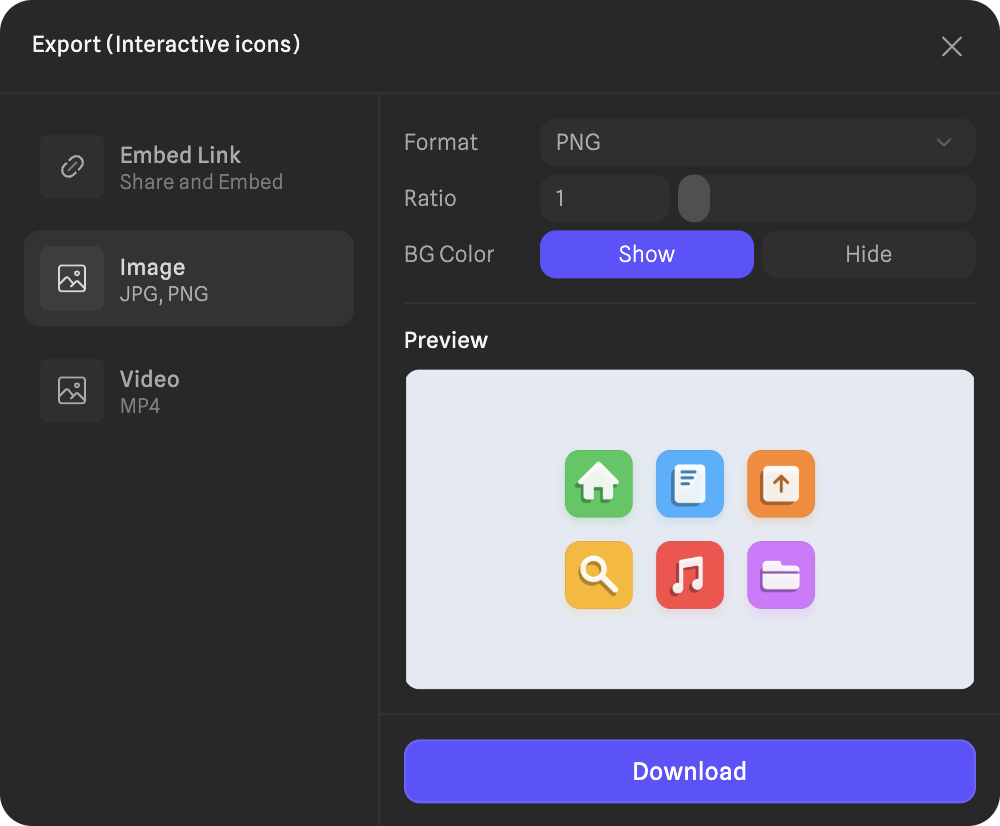
Exporting Images
Image Options
-
Show Logo: Toggle visibility of Hana’s logo.
-
Ratio: Select a scale ratio for your image.
-
Show/Hide BG Color: Adjust background color visibility.
Exporting Videos
To export a video, select a frame and press the "Export video" option from the dots menu or from the inspector sidebar.
If you want your animations to be part of the video, make sure you have a "Transition" action triggered by the "Start" event on at least one object. You can include multiple start events and transitions; any motion created with them will be captured in the exported video.
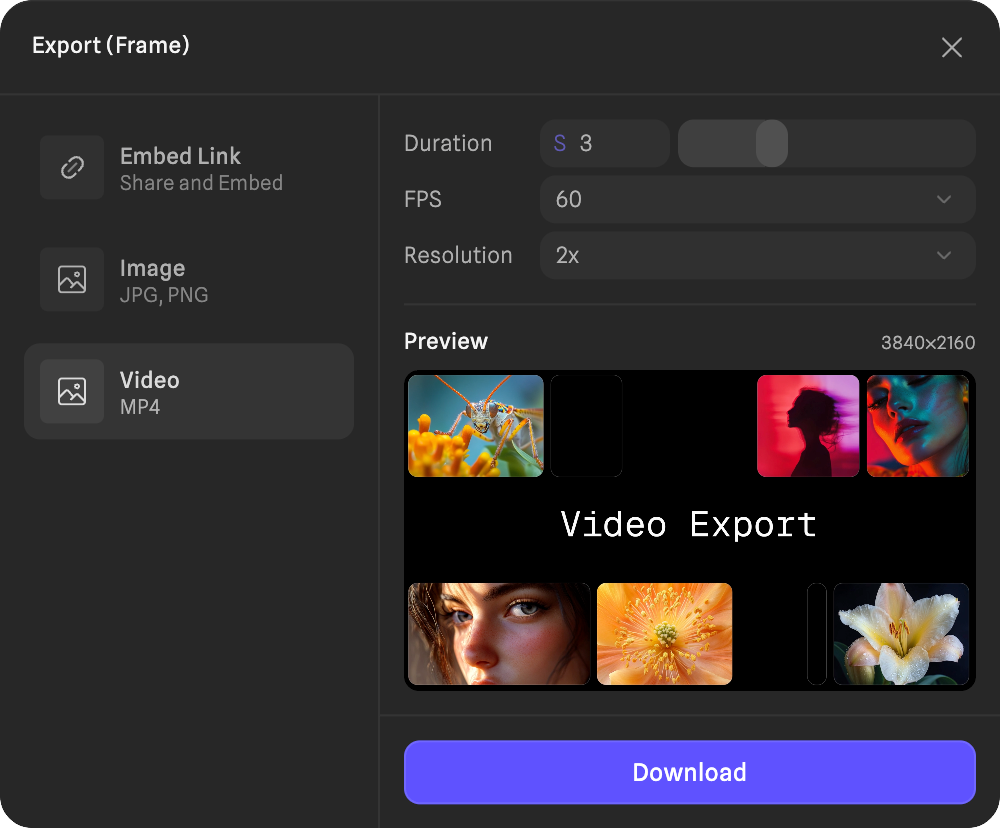
Video Options
-
Duration: The duration of the exported video in seconds.
-
FPS: Framerate (15, 24, 30, 48, 60)
-
Resolution: 1x, 2x, 3x, 4x; 480p, 720p, 1080p, 4k
Click "Download" to export the video.
Publishing Designs to the Community
You can contribute your Hana designs to the Hana community.
Publish from Editor
- Locate the share button in the top-right corner of the editor viewport.
- Switch to the “Publish” tab to share it with the community.
- Press continue and complete the next steps to upload the design to the community.
Learn more about the Community Platform.