

Files View
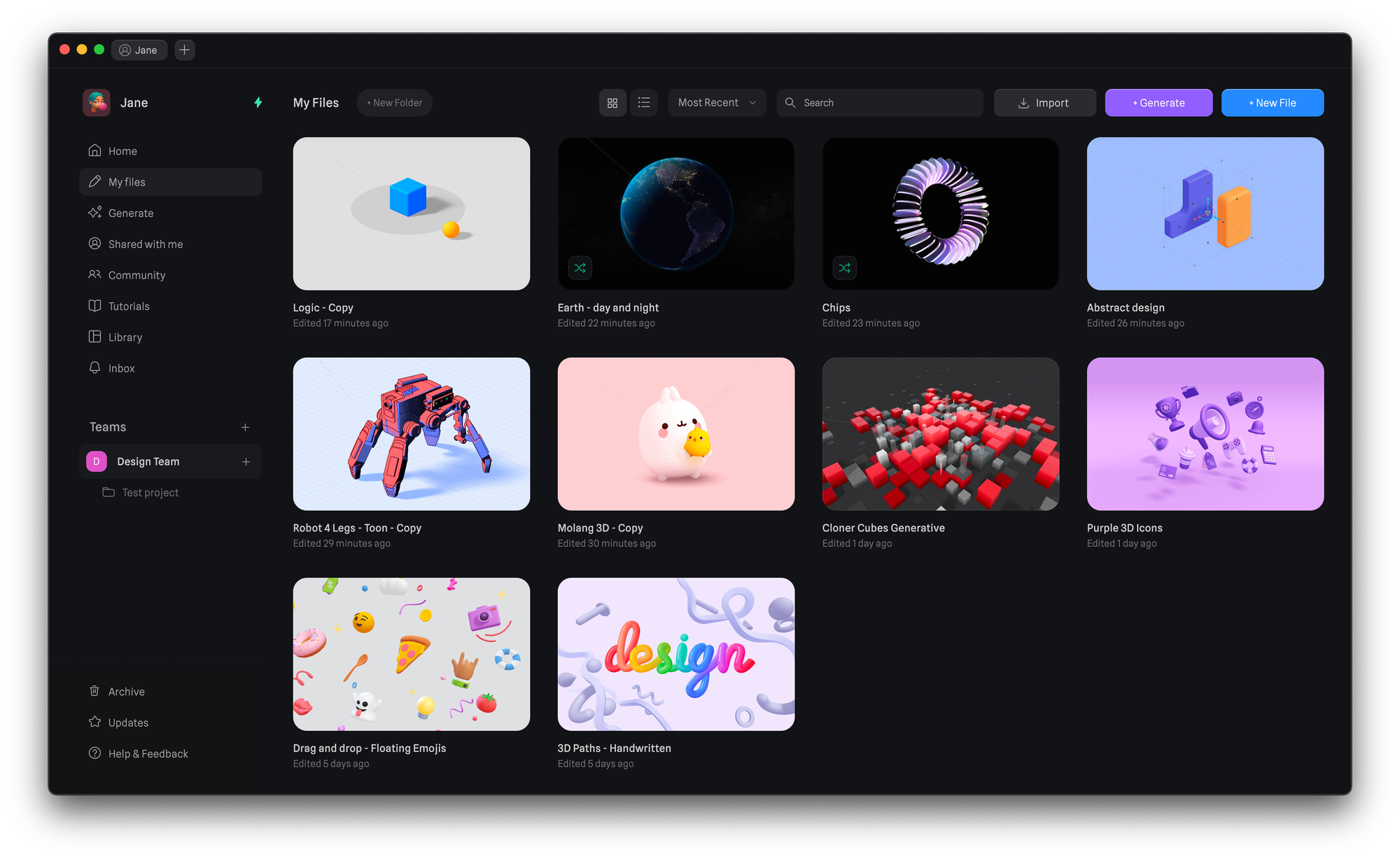
The ‘My Files’ tab is the place where you can organize all your personal files.
Use the file previews to quickly find what you want to work on and rest assured that your file will be always saved and updated with our autosave feature.
Creating a New File
There are a few ways to create a new file:
- The ‘New File’ button on the top right of your screen.
- Opening a context menu anywhere on the empty space of your files view and choosing ‘New File’.
- On the desktop app, press the ‘+’ icon on the top where the file tabs live.
Organizing your Files
Through the file context menu, you can do most actions. You can make a new folder from selection, Share Copy Link, Duplicate, Rename, Move, and Delete a file.
Selecting Files
Selecting your files is supposed to work in a familiar way from other tools or even from your own operating system. See below some of the ways to do it.
Single Click - Select a single file
CMD + Click - Select multiple files 1 by 1
Shift + Click - Select all files between the first and last selected
Box Selection - Draw a box selection around the files you want to select
Folders
With one of our paid plans, you can now create folders to keep all your files organized.
There are a few ways to create a new folder:
- The ‘New Folder’ button on the top of the page.
- Opening a context menu anywhere on the empty space of your files view and choosing ‘New Folder’.
- Selecting multiple files, opening a context menu, and selecting ‘New folder from selection’.
You can create folder structures as deep as you need them to be. The breadcrumb on top of the page should help you navigate in the folders.
To move files into folders or out of them you can easily drag and drop your files.
To drag multiple files first select them and then start dragging from one of them.