Vector Tools in Hana
Hana's vector tools cover everything from a quick arrow to a detailed illustration. This page covers lines and arrows, variable-width strokes, text on a path, point editing and path operations. For shapes, the Pen and the Pencil, see Designing in Hana.
On Windows, use Ctrl wherever this page says ⌘, and Alt for ⌥.
Lines and arrows
- Line (L) – Drag on the canvas to draw a straight line.
- Arrow (⇧L) – Drag to draw a line with an arrowhead at its end.
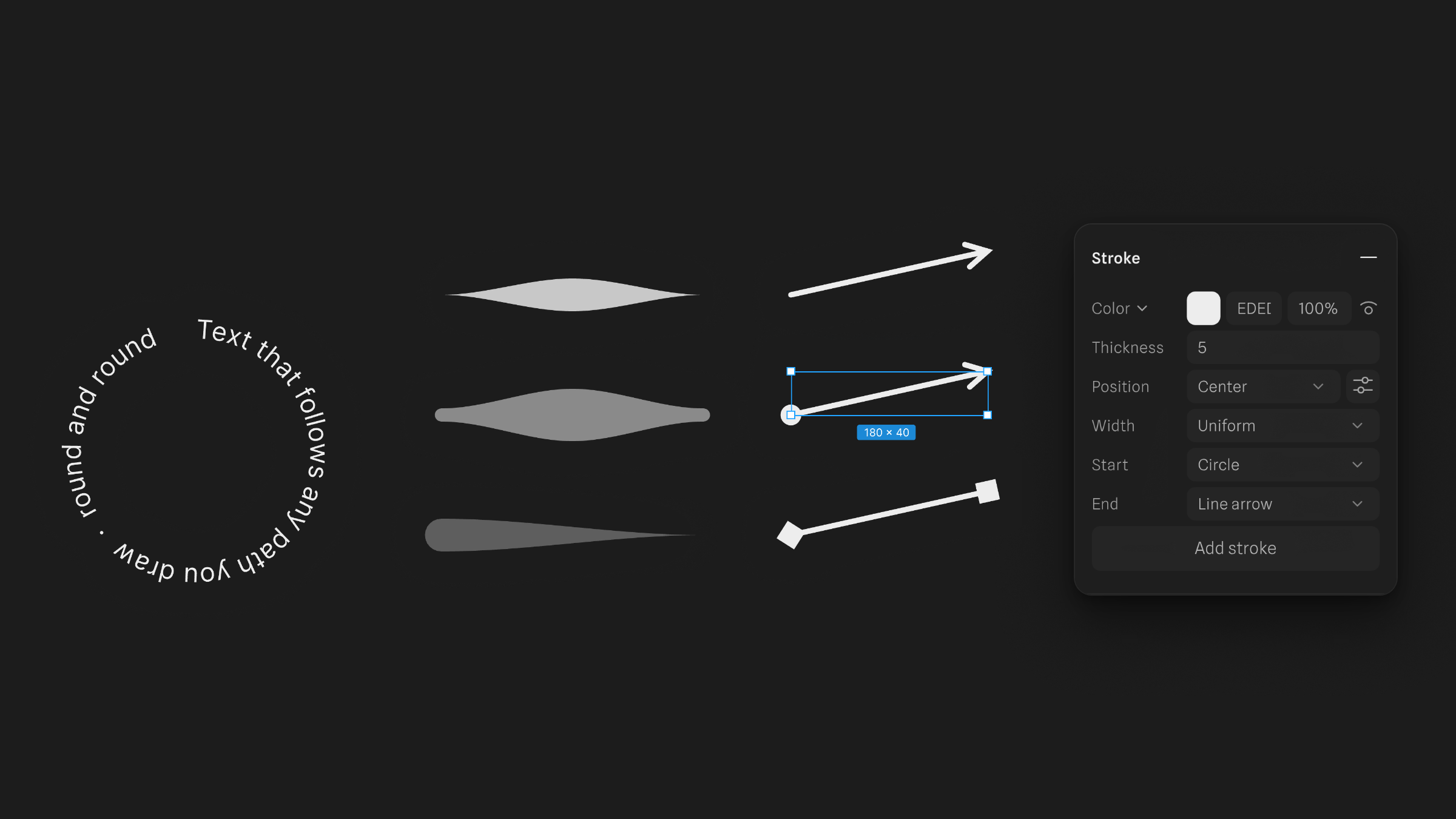
Any open vector path can have arrowheads. Select it and, in the Stroke panel, set Start and End to one of: None, Line arrow, Triangle arrow, Reversed triangle, Circle, Square or Diamond.
Variable-width strokes
A stroke doesn't have to be the same width all the way along.
- Width tool (⇧W) – Press on a stroke and drag away from its centerline to make it thicker at that point, or toward it to make it thinner. Each press adds a width point; drag an existing one to change it.
- Width presets – In the Stroke panel, set Width to Uniform, Taper end, Taper start, Taper both or Bulge.
Text on a path
- Select a text layer and the shape or path it should follow (two layers in total).
- Right-click and choose Put Text on Path.
The text now follows the path, and the path becomes part of the text layer. With the text selected, the Text on path group in the properties panel has:
- Offset – Moves the text along the path.
- Flip side – Puts the text on the other side of the path.
- Detach from path – Takes the text off the path again.
Editing points
While you're editing a vector's points:
- Lasso (Q) – Drag a free-form loop to select the points inside it.
- Join (⌘J) – Connects two selected open ends with a straight segment.
- Mirroring – In the Curve group, choose how a point's two handles move together: Auto, No mirroring, Mirror angle or Mirror angle and length.
Path operations
- Flatten (⌘E) – Merges the selection into a single vector.
- Outline Stroke (⌥⌘O) – Turns a stroke into a filled shape.
- Booleans – Combine shapes with Union, Subtract, Intersect or Exclude. Exclude keeps only the areas where the shapes don't overlap.
- Simplify Vector – Redraws the shape's outline with fewer points and curves, staying within 1 px of the original. It has no settings: it runs as soon as you choose it.
- Offset Path… – Grows or shrinks the shape's outline by a set distance. It opens a small dialog with Offset, the distance in px (positive grows the outline, negative shrinks it; 8 px to start with), and Corners, how the offset outline's corners are joined: Miter, Round or Bevel. Press Apply to run it.
Simplify Vector and Offset Path… are in the right-click menu of a shape and in the command palette. Both work on every selected shape except frames, and turn each one into a vector path, as Flatten does.
Placing images
Place Image… (⇧⌘K) opens a file picker. Pick one or more images, then click on the canvas where each one goes.
Related: Command palette and keyboard shortcuts in Hana, Designing in Hana