

Version History in Hana
Every Hana file keeps a history of its versions. Use it to look back at an earlier state of a design, save a checkpoint before a big change, or bring back something you deleted.
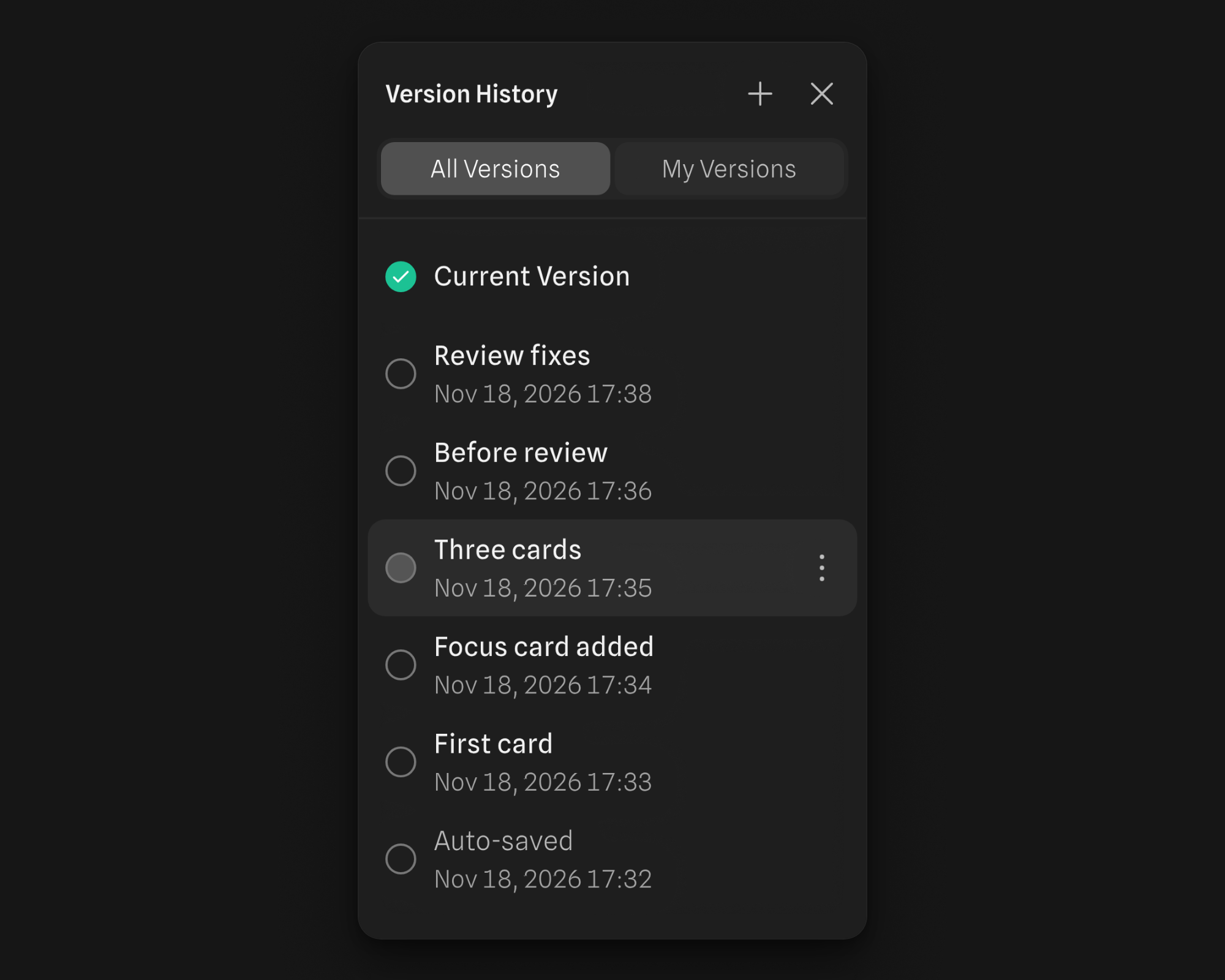
Opening Version History
Open the main menu and choose Version History, or press ⌘K (Ctrl+K on Windows) and search for "Version History".
The Version History panel takes the place of the properties panel. While it's open the file is read-only for you; close it with the × in the panel's header, or with Close Version History in the main menu.
Version History is available to anyone who can edit the file.
Browsing versions
The panel lists the file's versions, newest first, starting with the Current Version. Versions Hana saves automatically are listed as Auto-saved. Switch between All Versions and My Versions to show only the named ones.
Click a version to preview it on the canvas. The preview is read-only. A bar over the canvas shows which version you're previewing, with two buttons:
- Use this version – Makes the previewed version the current one.
- Cancel – Closes the preview and goes back to the current version.
Saving a named version
Click the + in the panel's header (Save new version), type a name and confirm. Named versions are easy to find later, so save one before a big change or when you hand a design off.
When the AI Agent changes your file, Hana saves a numbered version (Version 1, Version 2, …) for each prompt on paid plans, so you can return to the file as it was after any prompt.
Renaming, restoring and duplicating
Right-click a version, or open its options menu:
- Rename – Give the version a new name.
- Restore this version – Brings the version back as the current one.
- Duplicate as new file – Copies the version into a separate file, leaving this one as it is.
- Delete – Removes a named version. Auto-saved versions can't be deleted.
Restoring doesn't throw anything away: the restored version is added on top as a new version, and everything that came after it stays in the history.
Plans
Anyone who can edit a file can browse and preview its versions. Saving named versions and restoring versions are part of Spline's paid plans; on the Free plan the panel shows an Upgrade button instead.
Related: Pages in Hana, Command palette and keyboard shortcuts in Hana
Sections in Hana
Group related frames and objects on the canvas into labelled containers.
Command Palette & Keyboard Shortcuts in Hana
Search every Hana command with the command palette (⌘K), see all shortcuts in the Keyboard Shortcuts panel, and learn the main selection, clipboard and layer shortcuts.