

Publishing & ExportFiles
Exporting Image Sequences
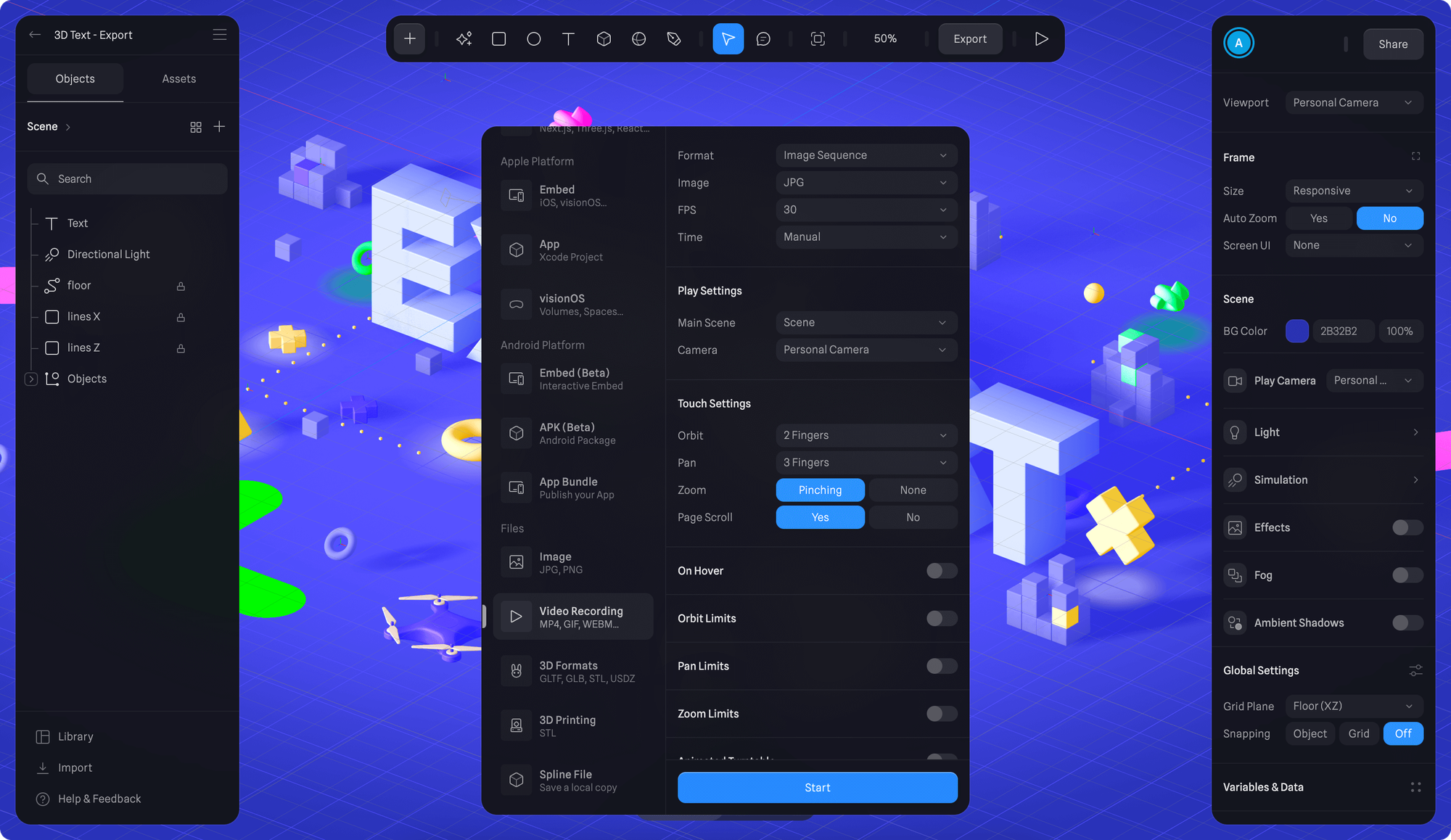
- Once you're happy with your scene, press the Export button on the toolbar.
- Scroll down to select "Video Recording" export under Files category from the export sidebar.
- Select “Image Sequence” from the Format dropdown
- Choose the type of image file you want to save (JPG or PNG).
- Set desired Frame rate in the FPS dropdown (15, 24, 30, 48, 60).
- In the Time dropdown, you can choose to either use a fixed duration or a manual duration for your Image Sequence.
- If you select a fixed duration, press "Start" to start recording and the Image Sequence will be automatically stopped at the set duration.
- If you select a manual duration, you'll need to manually control the beginning and the end of your Image Sequence with the "Start" and "Stop" buttons.
- After your Image Sequence is recorded you'll be prompted to save ZIP of images captured.